Blog
How To Create Complex Kernel Density Estimation Curve Using xlwings?
【Example】
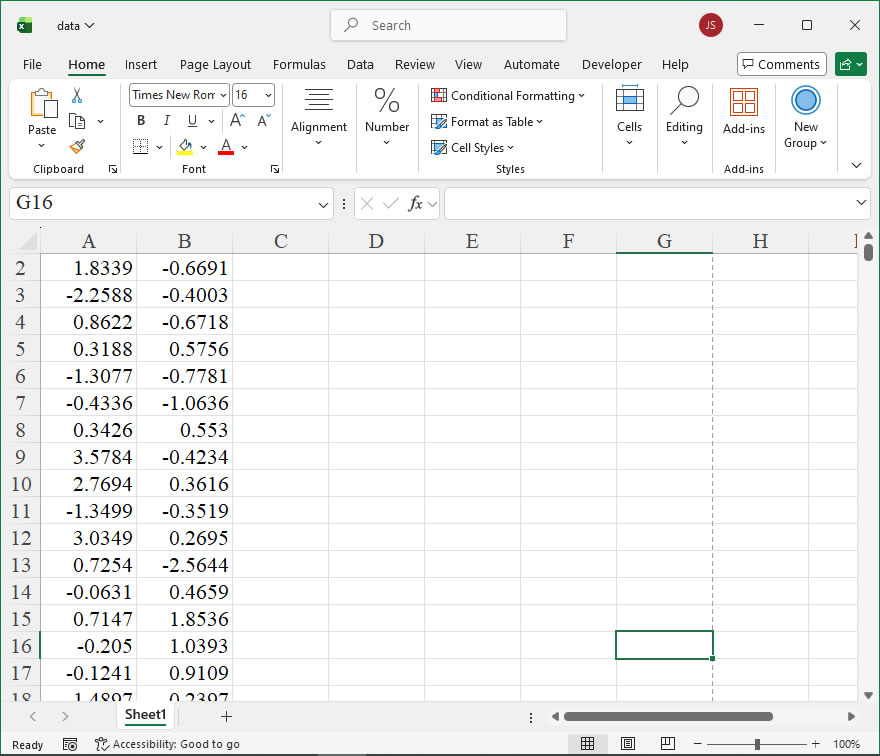
【Code】
import xlwings as xw
import numpy as np
import os

def set_style(cht):
    cht.ChartArea.Format.Line.Visible=False
    cht.PlotArea.Format.Fill.Visible = False
    cht.PlotArea.Format.Line.Visible = True
    cht.PlotArea.Format.Line.ForeColor.RGB=xw.utils.rgb_to_int((200,200,200))
    #cht.PlotArea.Format.Line.ForeColor.ObjectThemeColor = msoThemeColorText1
    ax1 = cht.Axes(1)
    ax2 = cht.Axes(2)
    ax1.HasTitle = True
    ax1.AxisTitle.Text = 'Values'
    ax1.AxisTitle.Font.Size = 10
    ax1.TickLabels.Font.Size = 8
    #ax1.TickLabels.NumberFormat = '0.00'
    ax1.HasMajorGridlines = True
    ax2.HasTitle = True
    ax2.AxisTitle.Text = 'Probability'
    ax2.AxisTitle.Font.Size = 10
    ax2.TickLabels.Font.Size = 8
    ax2.HasMajorGridlines = True
    cht.HasTitle = True
    cht.ChartTitle.Caption = 'KDE Plot'
    cht.ChartTitle.Font.Size = 12

def draw_kde(cht,data,y,r,g,b,minx,maxx):
    '''
    rng: 数据单元格区域
    'cht: 图表对象
    'dblX: 横坐标
    '''
    kdex=[0 for _ in range(180)]
    kdef=[0 for _ in range(180)]
    step=(maxx-minx)/180
    for i in range(180):
        kdex[i]=minx+i*step
        kdef[i]=y+kde(data,kdex[i],1.5)

    cht.SeriesCollection().NewSeries()

    #画填充多边形
    pt=[[0 for _ in range(2)] for _ in range(183)]
    for i in range(180):
        pt[i][0]=shape_x(cht,kdex[179-i])
        pt[i][1]=shape_y(cht,kdef[179-i])
    pt[180][0]=pt[179][0]
    pt[180][1]=shape_y(cht,0)
    pt[181][0]=pt[0][0]
    pt[181][1]=shape_y(cht,0)
    pt[182][0]=pt[0][0]
    pt[182][1]=pt[0][1]

    shp=cht.Shapes.AddPolyline(pt)
    shp.Fill.ForeColor.RGB=xw.utils.rgb_to_int((r,g,b))
    shp.Fill.OneColorGradient(1,1,1)
    shp.Fill.Transparency=0.5
    shp.Line.ForeColor.RGB=xw.utils.rgb_to_int((r,g,b))
    shp.Line.Weight=1.5

def kde(data,x,h):
  #一元核密度估计
  my_sum=0
  count=0
  for i in data:
      my_sum+=(1/np.sqrt(2*3.1415926))*\
      np.exp(-0.5*((x-i)/h)*((x-i)/h))
      count+=1
  return my_sum/count/h

root=os.getcwd()
app=xw.App(visible=True,add_book=False)
wb=app.books.open(root+r'/data.xlsx',read_only=False)
sht=wb.sheets('Sheet1')
data1=sht.range('A1:A100').value
data2=sht.range('B1:B100').value
app.kill()

#从comtypes包中导入CreateObject函数
from comtypes.client import CreateObject
app2=CreateObject("Excel.Application")  #创建Excel应用
app2.Visible=True  #应用窗口可见
app2.ScreenUpdating=False
wb2=app2.Workbooks.Open(root+r'/data.xlsx')  #添加工作簿
sht2=wb2.Sheets('Sheet1')  #获取第1个工作表

shp=sht2.Shapes.AddChart2()
shp.Left=20
cht=shp.Chart  #添加图表
cht.ChartType=-4169
ax1=cht.Axes(1)
ax2=cht.Axes(2)
ax1.MinimumScale=-10
ax1.MaximumScale=10
ax2.MinimumScale=0
ax2.MaximumScale=0.3
ax1.CrossesAt=ax1.MinimumScale
ax2.CrossesAt=ax2.MinimumScale

set_style(cht)

#绘制核密度估计曲线图
draw_kde(cht,data1,0,0,0,255,-10,10)
draw_kde(cht,data2,0,255,128,0,-10,10)

app2.ScreenUpdating=True

cht.Export(root+'/cht.jpg')
cht.Export(root+'/cht.svg')
cht.ExportAsFixedFormat(0,root+'/cht.pdf')

#wb2.Save()
#os.system('taskkill /f /im EXCEL.EXE')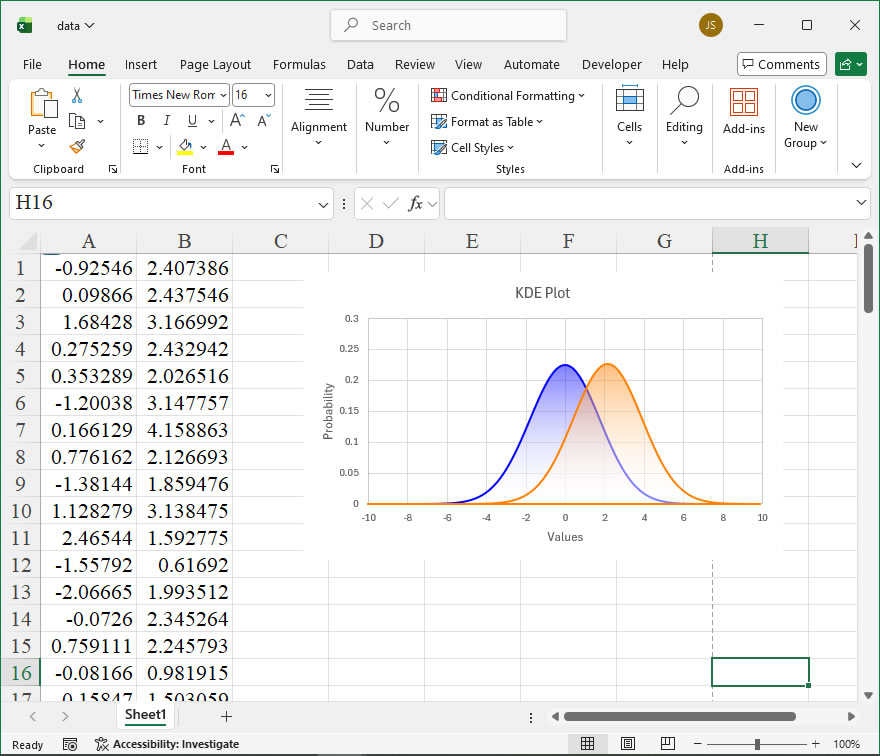
How to use Application.DisplayExcel4Menus in the xlwings API way
The DisplayExcel4Menus property of the Application object in Excel’s object model is a legacy feature primarily retained for backward compatibility with older Excel 4.0 macro sheets (XLM). In modern Excel usage via xlwings, its practical application is very limited and specialized. This property controls whether the old Excel 4.0 menu bars are displayed in the application window alongside or instead of the standard command bars. In contemporary Excel versions, these classic menus are hidden by default, as the ribbon interface is the primary UI.
Functionality:
The main function is to toggle the visibility of the Excel 4.0 menu bar. This can be useful in rare scenarios where you are maintaining or interacting with very old macro sheets that rely on those specific menu commands for execution or user interaction. For most modern automation and analysis tasks using xlwings, this property is not required.
Syntax in xlwings:
In xlwings, you access this property through the app object, which represents the Excel Application. The property is a Boolean (bool) value.
# To get the current state
current_state = app.api.DisplayExcel4Menus

# To set the state (True to display, False to hide)
app.api.DisplayExcel4Menus = True
The property is a simple read/write attribute. Setting it to True makes the Excel 4.0 menus visible; setting it to False hides them. Note that changes might only be fully apparent when working with an Excel 4.0 macro sheet (.xlm) as the active document.
Code Examples:
Here are practical xlwings API examples demonstrating its use:
- Checking the Current Status:
This code checks if the legacy menus are currently displayed.
import xlwings as xw
app = xw.apps.active # Get the active Excel application
menus_visible = app.api.DisplayExcel4Menus
print(f"Excel 4.0 Menus Visible: {menus_visible}")- Toggling the Display:
This script toggles the visibility state. It’s a good practice to restore the original state after your operation if you are temporarily changing it.
import xlwings as xw
app = xw.apps.active

original_state = app.api.DisplayExcel4Menus
print(f"Original state: {original_state}")

# Toggle the state
app.api.DisplayExcel4Menus = not original_state
print("Toggled display state.")

# ... Perform any tasks that require the menu state change ...

# Restore the original state
app.api.DisplayExcel4Menus = original_state
print("Original state restored.")- Ensuring Menus are Visible for a Legacy Macro:
If you need to ensure the menus are visible before running an old command, you might use this pattern.
import xlwings as xw
app = xw.apps.active

# Force the menus to be displayed
app.api.DisplayExcel4Menus = True

# Assuming 'wb' is a workbook containing Excel 4.0 macros
# wb.api.ExecuteExcel4Macro("SomeOldMacro()") # Example of running an XLM macro

# It is often advisable to hide them again afterwards to clean up the UI
# app.api.DisplayExcel4Menus = FalseHow To Create Kernel Density Estimation Curve with Color Fill Using xlwings? 2
【Example】
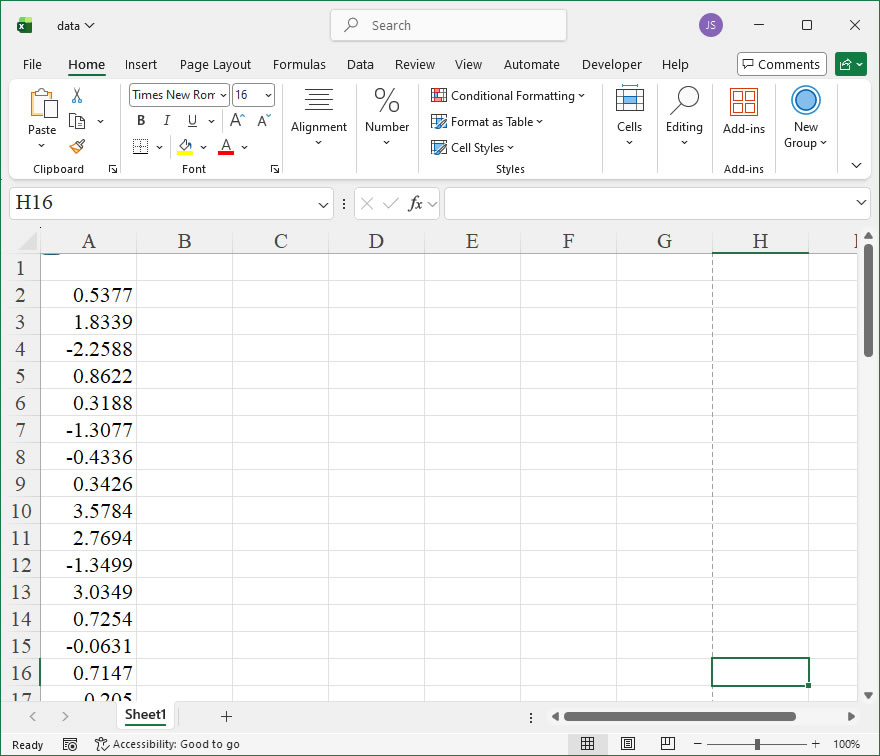
【Code】
import xlwings as xw
import numpy as np
import os

def set_style(cht):
    cht.ChartArea.Format.Line.Visible=False
    cht.PlotArea.Format.Fill.Visible = False
    cht.PlotArea.Format.Line.Visible = True
    cht.PlotArea.Format.Line.ForeColor.RGB=xw.utils.rgb_to_int((200,200,200))
    #cht.PlotArea.Format.Line.ForeColor.ObjectThemeColor = msoThemeColorText1
    ax1 = cht.Axes(1)
    ax2 = cht.Axes(2)
    ax1.HasTitle = True
    ax1.AxisTitle.Text = 'Values'
    ax1.AxisTitle.Font.Size = 10
    ax1.TickLabels.Font.Size = 8
    ax1.TickLabels.NumberFormat = '0.00'
    ax1.HasMajorGridlines = True
    ax2.HasTitle = True
    ax2.AxisTitle.Text = 'Probability'
    ax2.AxisTitle.Font.Size = 10
    ax2.TickLabels.Font.Size = 8
    ax2.HasMajorGridlines = True
    cht.HasTitle = True
    cht.ChartTitle.Caption = 'KDE Plot'
    cht.ChartTitle.Font.Size = 12

def kde(data,x,h):
  #一元核密度估计
  my_sum=0
  count=0
  for i in data:
      my_sum+=(1/np.sqrt(2*3.1415926))*\
      np.exp(-0.5*((x-i)/h)*((x-i)/h))
      count+=1
  return my_sum/count/h

root=os.getcwd()
app=xw.App(visible=True,add_book=False)
wb=app.books.open(root+r'/data.xlsx',read_only=False)
sht=wb.sheets('Sheet1')
data=sht.range('A2:A61').value
app.kill()

#从comtypes包中导入CreateObject函数
from comtypes.client import CreateObject
app2=CreateObject("Excel.Application")  #创建Excel应用
app2.Visible=True  #应用窗口可见
app2.ScreenUpdating=False
wb2=app2.Workbooks.Open(root+r'/data.xlsx')  #添加工作簿
sht2=wb2.Sheets('Sheet1')  #获取第1个工作表

shp=sht2.Shapes.AddChart2()
shp.Left=20
cht=shp.Chart  #添加图表
cht.ChartType=-4169
ax1=cht.Axes(1)
ax2=cht.Axes(2)
ax1.MinimumScale=-5.9
ax1.MaximumScale=12
ax2.MinimumScale=0
ax2.MaximumScale=0.15
ax1.CrossesAt=ax1.MinimumScale
ax2.CrossesAt=ax2.MinimumScale

set_style(cht)

kdex=[0 for _ in range(180)]
kdef=[0 for _ in range(180)]

for i in range(180):
    kdex[i]=(i-59)/10
    kdef[i]=kde(data,(i-59)/10,1.5)

cht.SeriesCollection().NewSeries()

#画填充多边形
pt=[[0 for _ in range(2)] for _ in range(183)]
for i in range(180):
    pt[i][0]=shape_x(cht,kdex[179-i])
    pt[i][1]=shape_y(cht,kdef[179-i])
pt[180][0]=pt[179][0]
pt[180][1]=shape_y(cht,0)
pt[181][0]=pt[0][0]
pt[181][1]=shape_y(cht,0)
pt[182][0]=pt[0][0]
pt[182][1]=pt[0][1]

shp2=cht.Shapes.AddPolyline(pt)
shp2.Fill.Transparency=0.5
shp2.Fill.ForeColor.RGB=xw.utils.rgb_to_int((0,0,255))
shp2.Fill.OneColorGradient(1,1,1)
shp2.Line.ForeColor.RGB=xw.utils.rgb_to_int((0,0,255))
shp2.Line.Weight=1.5

app2.ScreenUpdating=True

cht.Export(root+'/cht.jpg')
cht.Export(root+'/cht.svg')
cht.ExportAsFixedFormat(0,root+'/cht.pdf')

#wb2.Save()
#os.system('taskkill /f /im EXCEL.EXE')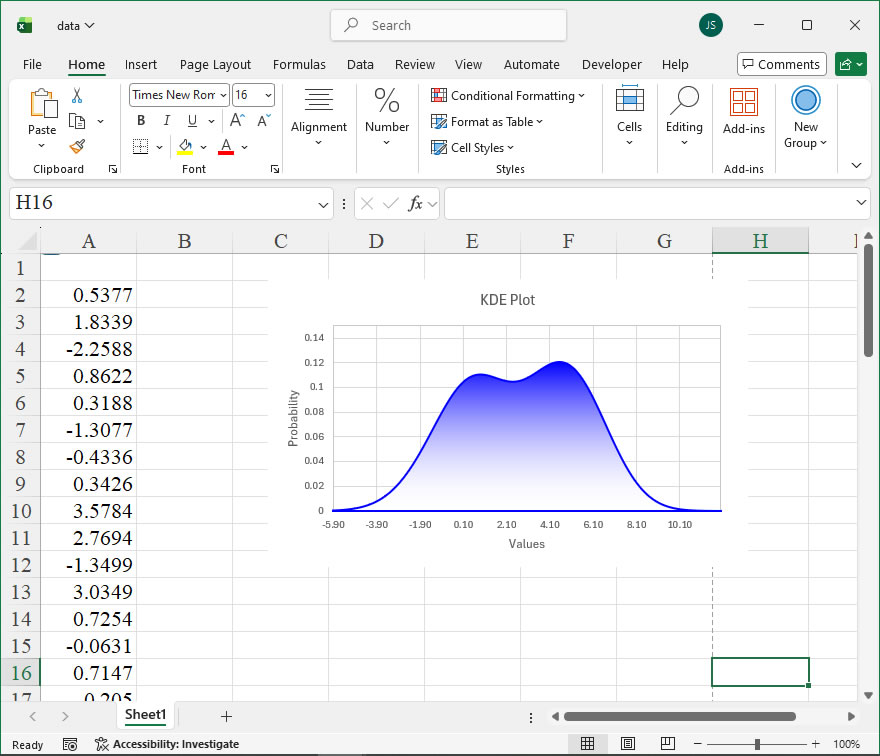
How to use Application.DisplayDocumentInformationPanel in the xlwings API way
The Application.DisplayDocumentInformationPanel property in Excel’s object model controls the visibility of the Document Information Panel (DIP) for the active workbook. This panel, when visible, typically displays metadata properties of the document based on its associated content type or custom XML parts. In xlwings, this functionality is exposed through the api property, which provides direct access to the underlying Excel VBA object model. Using this property, you can programmatically check whether the panel is currently displayed or change its visibility state, which can be useful in automation scripts that manage the user interface or document properties workflow.
Functionality
The primary function is to get or set a Boolean value indicating if the Document Information Panel is visible. This can help in UI automation, ensuring a consistent interface state, or in processes where metadata entry or review is required.
Syntax in xlwings
# To get the current visibility state
visible = xw.apps[0].api.DisplayDocumentInformationPanel

# To set the visibility state (True to show, False to hide)
xw.apps[0].api.DisplayDocumentInformationPanel = True- Property Type: Read/write Boolean.
- Return Value: When getting, it returns
Trueif the panel is visible; otherwise,False. - Parameter for Setting: A Boolean value (
TrueorFalse). Setting it toTruedisplays the panel;Falsehides it. Note that the effect might depend on the workbook’s properties and Excel’s configuration.
Code Examples
Here are practical xlwings API examples demonstrating its usage:
- Check and Report Current Visibility
import xlwings as xw

# Connect to the active Excel instance
app = xw.apps.active

# Get the current state of the Document Information Panel
is_visible = app.api.DisplayDocumentInformationPanel

# Output the result
if is_visible:
    print("The Document Information Panel is currently visible.")
else:
print("The Document Information Panel is currently hidden.")- Toggle the Panel Visibility
import xlwings as xw

app = xw.apps.active

# Toggle the visibility: if visible, hide it; if hidden, show it
current_state = app.api.DisplayDocumentInformationPanel
app.api.DisplayDocumentInformationPanel = not current_state

print(f"Toggled the panel. New state: {app.api.DisplayDocumentInformationPanel}")- Ensure the Panel is Hidden for a Clean UI
import xlwings as xw

# Start or connect to Excel
app = xw.App(visible=True) # Make Excel visible
app.books.add() # Open a new workbook

# Force the Document Information Panel to be hidden
app.api.DisplayDocumentInformationPanel = False

print("Document Information Panel has been hidden.")How To Create Kernel Density Estimation Curve with Color Fill Using xlwings?
【Example】
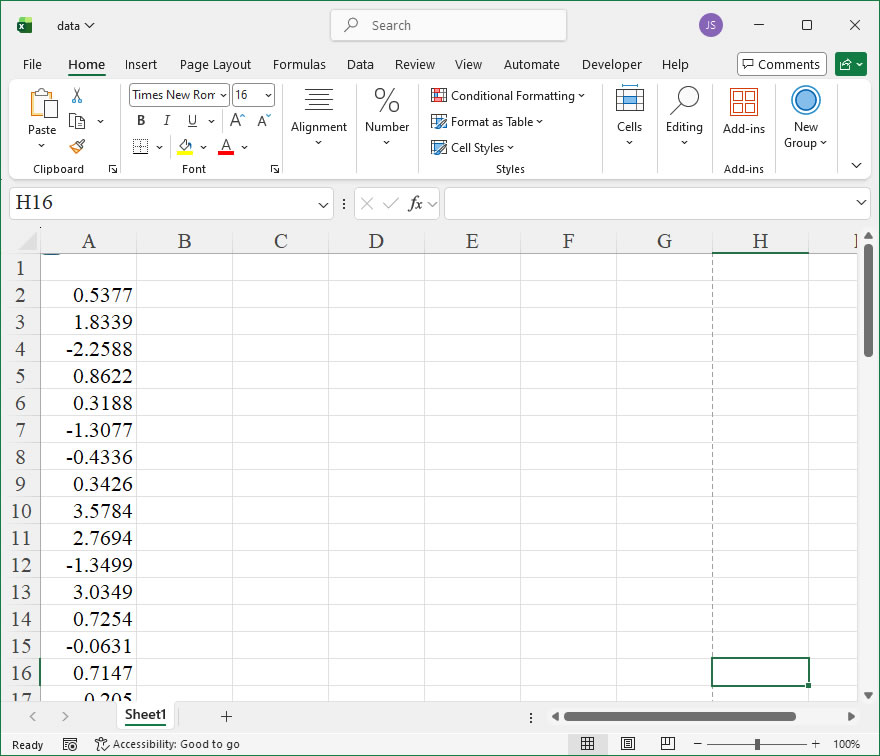
【Code】
import xlwings as xw
import numpy as np
import os

def set_style(cht):
    cht.ChartArea.Format.Line.Visible=False
    cht.PlotArea.Format.Fill.Visible = False
    cht.PlotArea.Format.Line.Visible = True
    cht.PlotArea.Format.Line.ForeColor.RGB=xw.utils.rgb_to_int((200,200,200))
    #cht.PlotArea.Format.Line.ForeColor.ObjectThemeColor = msoThemeColorText1
    ax1 = cht.Axes(1)
    ax2 = cht.Axes(2)
    ax1.HasTitle = True
    ax1.AxisTitle.Text = 'Values'
    ax1.AxisTitle.Font.Size = 10
    ax1.TickLabels.Font.Size = 8
    ax1.TickLabels.NumberFormat = '0.00'
    ax1.HasMajorGridlines = True
    ax2.HasTitle = True
    ax2.AxisTitle.Text = 'Probability'
    ax2.AxisTitle.Font.Size = 10
    ax2.TickLabels.Font.Size = 8
    ax2.HasMajorGridlines = True
    cht.HasTitle = True
    cht.ChartTitle.Caption = 'KDE Plot'
    cht.ChartTitle.Font.Size = 12

def kde(data,x,h):
  #一元核密度估计
  my_sum=0
  count=0
  for i in data:
      my_sum+=(1/np.sqrt(2*3.1415926))*\
      np.exp(-0.5*((x-i)/h)*((x-i)/h))
      count+=1
  return my_sum/count/h

root=os.getcwd()
app=xw.App(visible=True,add_book=False)
wb=app.books.open(root+r'/data.xlsx',read_only=False)
sht=wb.sheets('Sheet1')
data=sht.range('A2:A61').value
app.kill()

#从comtypes包中导入CreateObject函数
from comtypes.client import CreateObject
app2=CreateObject("Excel.Application")  #创建Excel应用
app2.Visible=True  #应用窗口可见
app2.ScreenUpdating=False
wb2=app2.Workbooks.Open(root+r'/data.xlsx')  #添加工作簿
sht2=wb2.Sheets('Sheet1')  #获取第1个工作表

shp=sht2.Shapes.AddChart2()
shp.Left=20
cht=shp.Chart  #添加图表
cht.ChartType=-4169
ax1=cht.Axes(1)
ax2=cht.Axes(2)
ax1.MinimumScale=-5.9
ax1.MaximumScale=12
ax2.MinimumScale=0
ax2.MaximumScale=0.15
ax1.CrossesAt=ax1.MinimumScale
ax2.CrossesAt=ax2.MinimumScale

set_style(cht)

kdex=[0 for _ in range(180)]
kdef=[0 for _ in range(180)]

for i in range(180):
    kdex[i]=(i-59)/10
    kdef[i]=kde(data,(i-59)/10,1.5)

cht.SeriesCollection().NewSeries()

#画填充多边形
pt=[[0 for _ in range(2)] for _ in range(183)]
for i in range(180):
    pt[i][0]=shape_x(cht,kdex[179-i])
    pt[i][1]=shape_y(cht,kdef[179-i])
pt[180][0]=pt[179][0]
pt[180][1]=shape_y(cht,0)
pt[181][0]=pt[0][0]
pt[181][1]=shape_y(cht,0)
pt[182][0]=pt[0][0]
pt[182][1]=pt[0][1]

shp2=cht.Shapes.AddPolyline(pt)
shp2.Fill.ForeColor.RGB=xw.utils.rgb_to_int((0,0,255))
shp2.Fill.Transparency = 0.5
shp2.Line.ForeColor.RGB=xw.utils.rgb_to_int((0,0,255))
shp2.Line.Weight=2

app2.ScreenUpdating=True

cht.Export(root+'/cht.jpg')
cht.Export(root+'/cht.svg')
cht.ExportAsFixedFormat(0,root+'/cht.pdf')

#wb2.Save()
#os.system('taskkill /f /im EXCEL.EXE')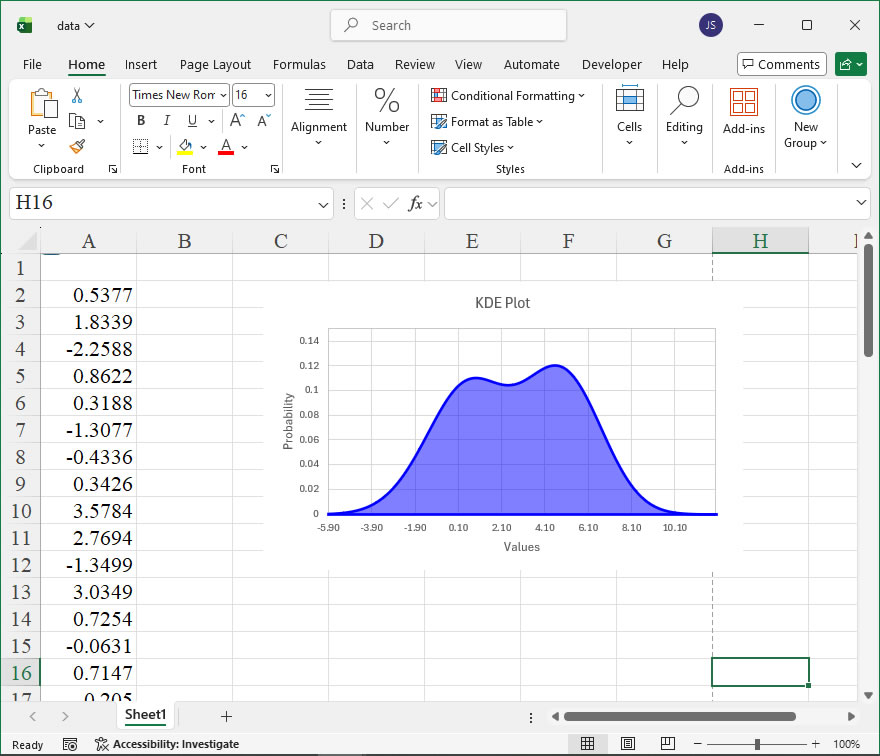
How to use Application.DisplayDocumentActionTaskPane in the xlwings API way
The DisplayDocumentActionTaskPane property of the Application object in Excel’s object model controls the visibility of the Document Actions task pane, which is used for working with smart documents and XML expansions. In xlwings, this functionality is exposed through the api property, allowing direct access to the underlying Excel VBA object model. This property is particularly useful when automating workbooks that utilize smart document solutions or XML mappings, enabling developers to programmatically show or hide the associated task pane to streamline the user interface during automated processes.
Functionality:
The DisplayDocumentActionTaskPane property is a read/write Boolean property that determines whether the Document Actions task pane is displayed in the Excel application window. When set to True, the task pane is visible; when False, it is hidden. This can enhance user experience by automatically managing task pane visibility based on the context of the automation script, such as hiding it during data processing to reduce clutter or showing it when user interaction with smart document features is required.
Syntax in xlwings:
In xlwings, you access this property via the Application object obtained from a workbook or app instance. The typical syntax is:
app = xw.App() # Get the Excel application instance
app.api.DisplayDocumentActionTaskPane = True # Set to True to display, False to hide
current_state = app.api.DisplayDocumentActionTaskPane # Read the current state
Here, app.api provides the raw Excel VBA object model interface. The DisplayDocumentActionTaskPane property does not take any parameters; it simply gets or sets a Boolean value. Note that this property may not be available in all Excel versions or configurations, particularly if smart document features are not enabled. It is recommended to check the Excel environment or handle potential errors when using it.
Code Examples:
Below are practical examples demonstrating how to use DisplayDocumentActionTaskPane with xlwings in Python.
- Displaying the Document Actions Task Pane:
This example shows how to make the task pane visible when opening a workbook that uses smart document functionality.
import xlwings as xw

# Start Excel and open a workbook
app = xw.App(visible=True)
workbook = app.books.open('SmartDocument.xlsx')

# Display the Document Actions task pane
app.api.DisplayDocumentActionTaskPane = True
print("Document Actions task pane is now visible.")

# Keep the application open for demonstration
input("Press Enter to hide the task pane and close...")

# Hide the task pane before closing
app.api.DisplayDocumentActionTaskPane = False
app.quit()- Toggling Task Pane Visibility Based on Content:
In this example, the script checks for XML mappings in a workbook and toggles the task pane accordingly.
import xlwings as xw

app = xw.App(visible=True)
wb = app.books.open('DataWithXML.xlsx')

# Check if the workbook has XML maps (simplified condition)
has_xml_maps = len(wb.api.XmlMaps) > 0

if has_xml_maps:
    app.api.DisplayDocumentActionTaskPane = True
    print("XML maps detected. Document Actions task pane displayed.")
else:
    app.api.DisplayDocumentActionTaskPane = False
    print("No XML maps found. Task pane hidden.")

# Perform some data operations
sheet = wb.sheets[0]
sheet.range('A1').value = 'Updated Data'

# Hide task pane after operations
app.api.DisplayDocumentActionTaskPane = False
wb.save()
app.quit()- Reading the Current State:
This example retrieves the current visibility status of the task pane for logging or conditional logic.
import xlwings as xw

app = xw.App(visible=True)
wb = app.books.add()

# Read the current display state
is_displayed = app.api.DisplayDocumentActionTaskPane
print(f"Document Actions task pane visible: {is_displayed}")

# Toggle based on current state
if not is_displayed:
    app.api.DisplayDocumentActionTaskPane = True
    print("Task pane has been turned on.")

app.quit()How To Create Univariate Kernel Density Estimation Curve Using xlwings?
【Example】
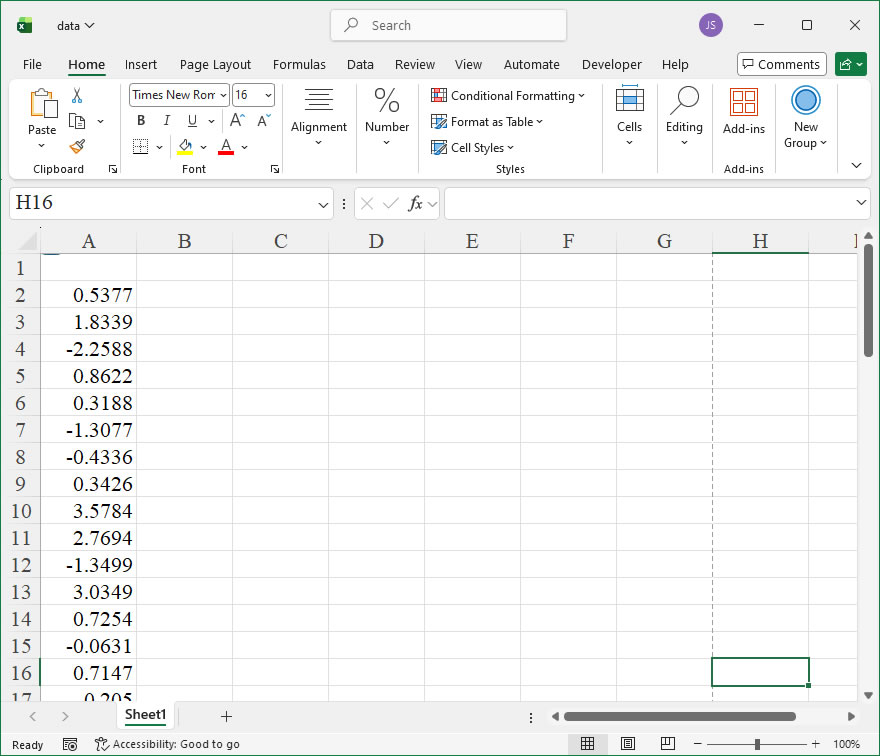
【Code】
import xlwings as xw
import numpy as np
import os

def set_style(cht):
    cht.ChartArea.Format.Line.Visible=False
    cht.PlotArea.Format.Fill.Visible = False
    cht.PlotArea.Format.Line.Visible = True
    cht.PlotArea.Format.Line.ForeColor.RGB=xw.utils.rgb_to_int((200,200,200))
    #cht.PlotArea.Format.Line.ForeColor.ObjectThemeColor = msoThemeColorText1
    ax1 = cht.Axes(1)
    ax2 = cht.Axes(2)
    ax1.HasTitle = True
    ax1.AxisTitle.Text = 'Values'
    ax1.AxisTitle.Font.Size = 10
    ax1.TickLabels.Font.Size = 8
    ax1.TickLabels.NumberFormat = '0.00'
    ax1.HasMajorGridlines = True
    ax2.HasTitle = True
    ax2.AxisTitle.Text = 'Probability'
    ax2.AxisTitle.Font.Size = 10
    ax2.TickLabels.Font.Size = 8
    ax2.HasMajorGridlines = True
    cht.HasTitle = True
    cht.ChartTitle.Caption = 'KDE Plot'
    cht.ChartTitle.Font.Size = 12

def kde(data,x,h):
  #一元核密度估计
  my_sum=0
  count=0
  for i in data:
      my_sum+=(1/np.sqrt(2*3.1415926))*\
      np.exp(-0.5*((x-i)/h)*((x-i)/h))
      count+=1
  return my_sum/count/h


root=os.getcwd()
app=xw.App(visible=True,add_book=False)
wb=app.books.open(root+r'/data.xlsx',read_only=False)
sht=wb.sheets('Sheet1')
data=sht.range('A2:A61').value
app.kill()

#从comtypes包中导入CreateObject函数
from comtypes.client import CreateObject
app2=CreateObject("Excel.Application")  #创建Excel应用
app2.Visible=True  #应用窗口可见
app2.ScreenUpdating=False
wb2=app2.Workbooks.Open(root+r'/data.xlsx')  #添加工作簿
sht2=wb2.Sheets('Sheet1')  #获取第1个工作表

shp=sht2.Shapes.AddChart2()
shp.Left=20
cht=shp.Chart  #添加图表
cht.ChartType=-4169
ax1=cht.Axes(1)
ax2=cht.Axes(2)
ax1.MinimumScale=-5.9
ax1.MaximumScale=12
ax2.MinimumScale=0
ax2.MaximumScale=0.15
ax1.CrossesAt=ax1.MinimumScale
ax2.CrossesAt=ax2.MinimumScale

set_style(cht)

kdex=[0 for _ in range(180)]
kdef=[0 for _ in range(180)]

for i in range(180):
    kdex[i]=(i-59)/10
    kdef[i]=kde(data,(i-59)/10,1.5)

cht.SeriesCollection().NewSeries()

#画填充多边形
pt=[[0 for _ in range(2)] for _ in range(183)]
for i in range(180):
    pt[i][0]=shape_x(cht,kdex[179-i])
    pt[i][1]=shape_y(cht,kdef[179-i])
pt[180][0]=pt[179][0]
pt[180][1]=shape_y(cht,0)
pt[181][0]=pt[0][0]
pt[181][1]=shape_y(cht,0)
pt[182][0]=pt[0][0]
pt[182][1]=pt[0][1]

shp2=cht.Shapes.AddPolyline(pt)
shp2.Fill.Visible=False
shp2.Line.ForeColor.RGB=xw.utils.rgb_to_int((0,0,255))
shp2.Line.Weight=1.5

app2.ScreenUpdating=True

cht.Export(root+'/cht.jpg')
cht.Export(root+'/cht.svg')
cht.ExportAsFixedFormat(0,root+'/cht.pdf')

#wb2.Save()
#os.system('taskkill /f /im EXCEL.EXE')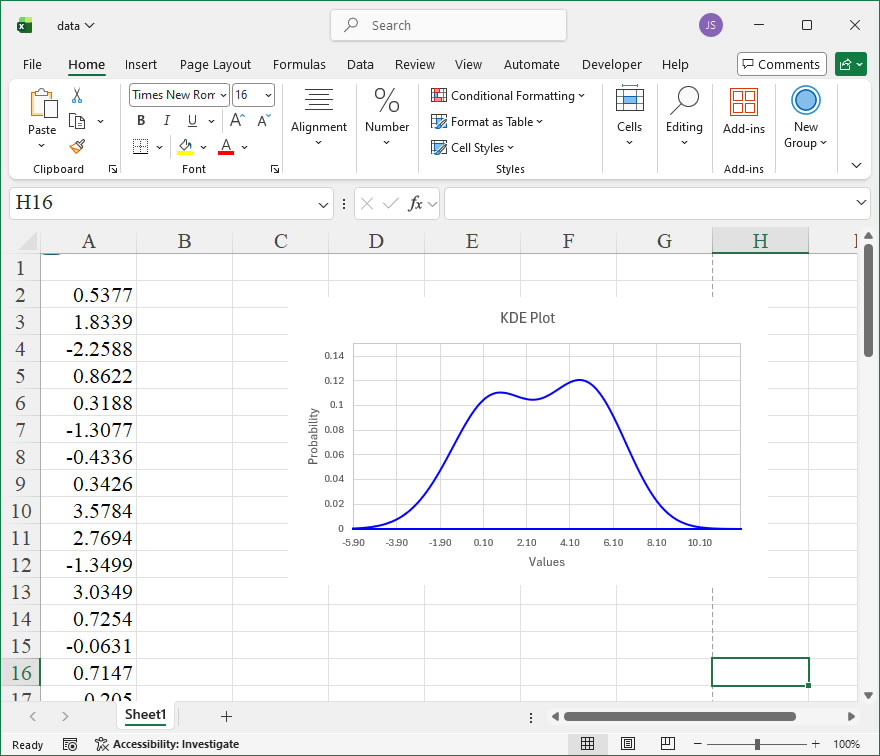
How to use Application.DisplayCommentIndicator in the xlwings API way
The DisplayCommentIndicator property in the Excel Application object determines how cell comments (also known as notes) are visually indicated within a worksheet. This setting is crucial for controlling the visibility of comment indicators, which are the small red triangles typically found in the top-right corner of cells containing comments. By adjusting this property, users can tailor the display to suit different workflows, such as hiding indicators for a cleaner view or showing them only when comments are present. This property is particularly useful in collaborative environments where comment tracking is essential, or when preparing reports where visual clutter should be minimized.
In xlwings, the DisplayCommentIndicator property can be accessed through the Application object. The syntax for using this property is straightforward: app.display_comment_indicator. Here, app refers to an instance of the xlwings App class, which represents the Excel application. The property accepts integer values that correspond to specific display modes, as defined in Excel’s object model. The possible values and their meanings are as follows:
-1: Displays comment indicators only when comments are present (default). This is the standard setting where red triangles appear in cells with comments.0: Hides comment indicators entirely. In this mode, no visual cues are shown, even if cells contain comments, which can make the worksheet look cleaner but may hide important annotations.1: Always shows comment indicators, regardless of whether comments are present. This mode is less common but can be used for consistency in certain templates or to highlight cells intended for comments.
To set or retrieve the DisplayCommentIndicator property in xlwings, you first need to establish a connection to the Excel application. For example, you can use xlwings.App() to launch a new instance or connect to an existing one. Once the application object is available, you can directly assign or read the property value. This property is application-wide, meaning it affects all open workbooks and worksheets in that Excel instance. It is important to note that changes made via xlwings are immediately reflected in the Excel interface, allowing for dynamic adjustments during automation scripts.
Here are some practical xlwings API code examples demonstrating the use of the DisplayCommentIndicator property:
- Retrieving the current display setting:
import xlwings as xw
app = xw.App(visible=True) # Start or connect to Excel
current_setting = app.display_comment_indicator
print(f"Current DisplayCommentIndicator setting: {current_setting}")
# This will output -1, 0, or 1 based on the current configuration.
app.quit() # Close the application- Hiding comment indicators for a cleaner view:
import xlwings as xw
app = xw.App(visible=True)
app.display_comment_indicator = 0 # Hide indicators
print("Comment indicators are now hidden.")
# You can open a workbook here to see the effect, e.g., app.books.open('example.xlsx')
app.quit()- Showing indicators only when comments exist (default reset):
import xlwings as xw
app = xw.App(visible=False) # Run in background
app.display_comment_indicator = -1 # Set to default
print("DisplayCommentIndicator reset to default (show only with comments).")
app.quit()- Always displaying comment indicators for consistency:
import xlwings as xw
with xw.App(visible=True) as app: # Using context manager for automatic cleanup
app.display_comment_indicator = 1 # Always show indicators
wb = app.books.open('sample.xlsx')
# The workbook will now show red triangles in all cells, even empty ones.
wb.save()
# The setting persists until changed or Excel is restarted.How To Create Bivariate Histogram Using xlwings?
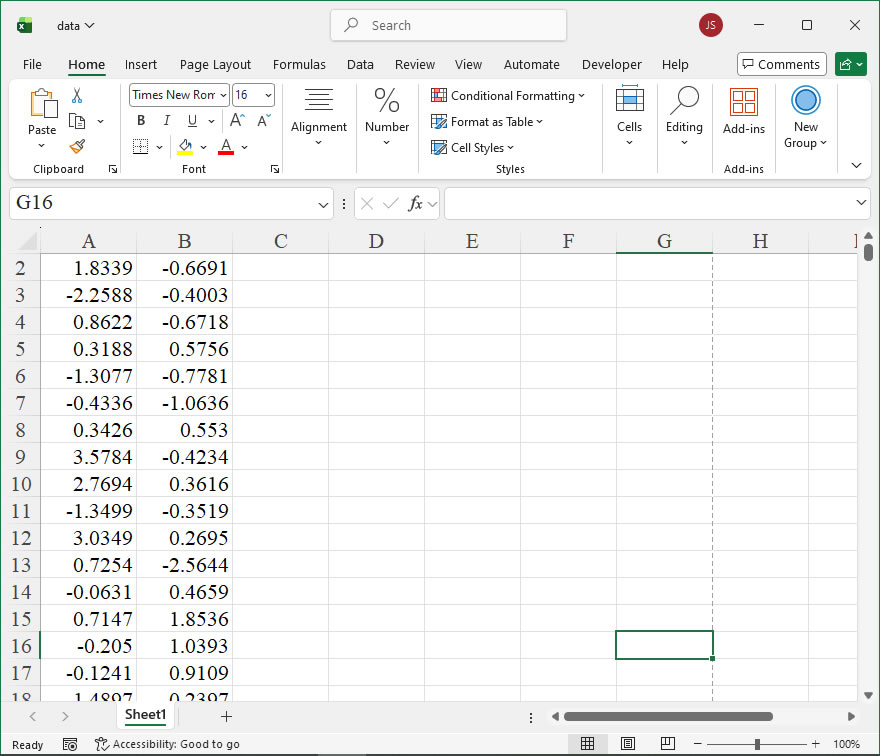
【Example】
【Code】
import xlwings as xw
import os

def set_style(cht):
    cht.ChartArea.Format.Line.Visible=False
    cht.PlotArea.Format.Fill.Visible = False
    cht.PlotArea.Format.Line.Visible = True
    cht.PlotArea.Format.Line.ForeColor.RGB=xw.utils.rgb_to_int((200,200,200))
    ax1 = cht.Axes(1)
    ax2 = cht.Axes(2)
    ax1.HasTitle = True
    ax1.AxisTitle.Text = 'Categories'
    ax1.AxisTitle.Font.Size = 10
    ax1.TickLabels.Font.Size = 8
    #ax1.TickLabels.NumberFormat = '0.00'
    ax1.HasMajorGridlines = False
    ax2.HasTitle = True
    ax2.AxisTitle.Text = 'Values'
    ax2.AxisTitle.Font.Size = 10
    ax2.TickLabels.Font.Size = 8
    ax2.HasMajorGridlines = False
    cht.HasTitle = True
    #cht.ChartTitle.Caption = 'Plot'
    #cht.ChartTitle.Font.Size = 12

root=os.getcwd()
app=xw.App(visible=True,add_book=False)
wb=app.books.open(root+r'/data.xlsx',read_only=False)
sht=wb.sheets('Sheet1')
x=sht.range('A1:A1000').value
y=sht.range('B1:B1000').value

#频数分析
bx=10
by=10
minx=9999
maxx=-9999
miny=9999
maxy=-9999
for i in range(1000):
    if minx>x[i]: minx=x[i]
    if maxx<x[i]: maxx=x[i]
    if miny>y[i]: miny=y[i]
    if maxy<y[i]: maxy=y[i]
difx=maxx-minx
dify=maxy-miny
stepx=difx/bx
stepy=dify/by
count=[[0 for _ in range(10)] for _ in range(10)]
xi=[0 for _ in range(11)]
xi2=[0 for _ in range(11)]
xi[0]=minx
xi2[0]=minx+stepx/2
for i in range(1,11):
    xi[i]=xi[i-1]+stepx
    if i!=10:
        xi2[i]=xi[i]+stepx/2
yi=[0 for _ in range(11)]
yi2=[0 for _ in range(11)]
yi[0]=miny
yi2[0]=miny+stepy/2
for i in range(1,11):
    yi[i]=yi[i-1]+stepy
    if i!=10:
        yi2[i]=yi[i]+stepy/2
for k in range(1000):
    for i in range(10):
        if x[k]>=xi[i] and x[k]<xi[i+1]:
            for j in range(10):
                if y[k]>=yi[j] and y[k]<yi[j+1]:
                    count[i][j]+=1

#输出频数到sheet2
sht2=wb.sheets.add()
for i in range(1,11):
    for j in range(1,11):
        sht2.api.Cells(i+1,j+1).Value=count[i-1][j-1]

#根据频数绘制二元直方图
shp=sht2.api.Shapes.AddChart2(286,xw.constants.ChartType.xl3DColumn)
shp.Left=20
cht=shp.Chart
if cht.SeriesCollection().Count>0:
    for i in range(cht.SeriesCollection().Count,0,-1):
        cht.SeriesCollection(i).Delete()
cht.Legend.Delete()

countj=[0 for _ in range(10)]
for i in range(10):
    countj[i]=count[i][:]
    cht.SeriesCollection().NewSeries()
    cht.SeriesCollection(i+1).Name=str(yi2[i])    #序列轴刻度标签
    cht.SeriesCollection(i+1).XValues=xi2    #分类轴刻度标签
    cht.SeriesCollection(i+1).Values=countj[i]    #Z轴

cht.ChartGroups(1).GapWidth=0
cht.GapDepth=0
for i in range(10):
    fl=cht.SeriesCollection(i+1).Format.Fill
    fl.ForeColor.ObjectThemeColor=5    #msoThemeColorAccent1
    #fl.ForeColor.TintAndShade = 0
    fl.ForeColor.Brightness=0
    fl.Solid()

    ln=cht.SeriesCollection(i+1).Format.Line
    ln.Visible=True
    ln.ForeColor.ObjectThemeColor=13    #msoThemeColorText1
    #ln.ForeColor.TintAndShade = 0
    ln.ForeColor.Brightness=0.0500000007

cht.Export(root+'/cht.jpg')
cht.Export(root+'/cht.svg')
cht.ExportAsFixedFormat(0,root+'/cht.pdf')

#wb.save()
#app.kill()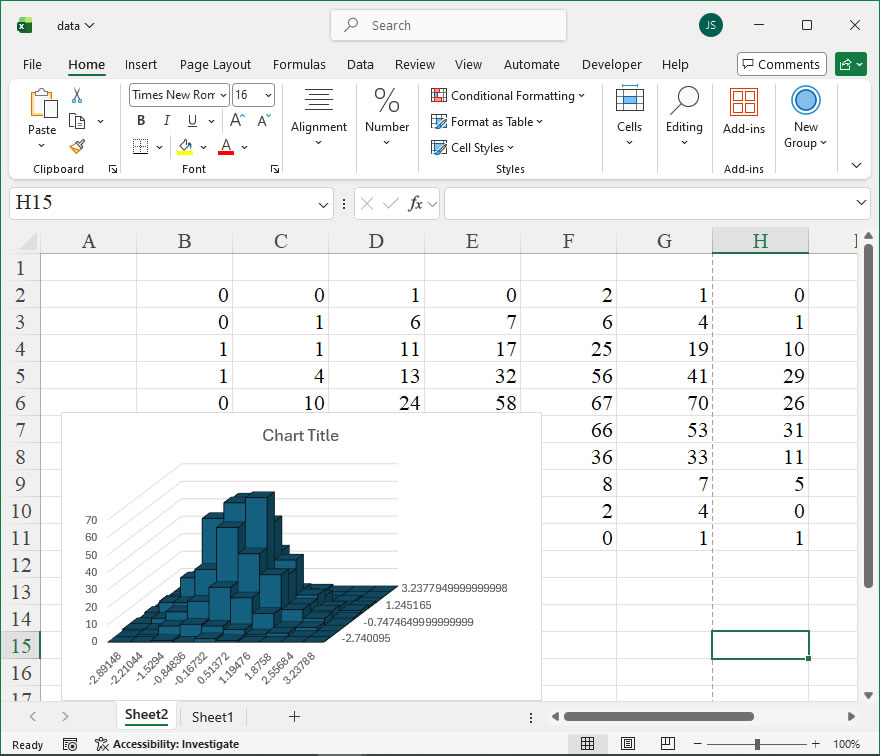
How to use Application.DisplayClipboardWindow in the xlwings API way
The DisplayClipboardWindow member of the Application object in Excel is a property that controls the visibility of the Clipboard task pane. This pane appears when you copy or cut multiple items in Excel, allowing you to view and manage the clipboard history. In automation scripts using xlwings, this property is useful for managing the user interface state, particularly when you want to ensure a clean interface during macro execution or toggling the pane for specific tasks.
In xlwings, the Application object is accessed via the app property of a Book object or by creating an application instance directly. The DisplayClipboardWindow property is a read/write Boolean property, meaning you can both retrieve its current state and set it to a new value. The syntax for accessing this property in xlwings is straightforward, as it directly mirrors the VBA object model but uses Python’s attribute style.
Syntax and Parameters:
- Property Access:
app.api.DisplayClipboardWindow - This returns or sets a Boolean value (
TrueorFalse). apprefers to the xlwings application instance (e.g.,xw.apps.activeor a newly created one).- The
.apiattribute is used to access the underlying Excel object model, ensuring compatibility with Excel’s native properties and methods. - Value Explanation:
True: Makes the Clipboard task pane visible.False: Hides the Clipboard task pane.- Note: There are no additional parameters for this property. It is a simple toggle that affects the Excel application’s UI.
Example Usage:
Below are practical xlwings code examples demonstrating how to use the DisplayClipboardWindow property in various scenarios.
- Checking the Current State:
You can retrieve whether the Clipboard pane is currently displayed to inform your script’s logic.
import xlwings as xw
# Connect to the active Excel instance
app = xw.apps.active
# Get the current display state
is_visible = app.api.DisplayClipboardWindow
print(f"Clipboard window is visible: {is_visible}")- Hiding the Clipboard Pane:
To ensure a distraction-free interface during automation, you might hide the pane.
import xlwings as xw
# Start a new Excel instance (or use an existing one)
app = xw.App(visible=True) # Set visible=True to see Excel UI
# Hide the Clipboard task pane
app.api.DisplayClipboardWindow = False
# Perform other tasks, like data manipulation
book = app.books.add()
book.sheets[0].range("A1").value = "Sample data"
# Keep the pane hidden until end
app.quit() # Close the application- Toggling Visibility Based on Condition:
You can conditionally show or hide the pane, such as when copying multiple items.
import xlwings as xw
app = xw.apps.active
# Assume we want to show the pane only if performing a multi-copy operation
multi_copy_needed = True # This could be determined by your script's logic
if multi_copy_needed:
    app.api.DisplayClipboardWindow = True
    print("Clipboard pane shown for multi-copy tasks.")
else:
    app.api.DisplayClipboardWindow = False
print("Clipboard pane hidden.")- Integrating with Other Operations:
Combine with copying data to leverage the clipboard functionality.
import xlwings as xw
app = xw.apps.active
book = app.books.active
# Show the Clipboard pane before copying
app.api.DisplayClipboardWindow = True
# Copy a range of data
book.sheets[0].range("A1:B10").copy()
# The pane will now display the copied items; you can then hide it after a delay or task
import time
time.sleep(2) # Wait 2 seconds to let user see the pane
app.api.DisplayClipboardWindow = False