Blog
How To Create Points Using xlwings?
Method
The Shapes object does not provide a specific method to draw points, but it offers several special shapes that can represent points, such as stars, rectangles, circles, diamonds, etc. These AutoShapes can be created using the `AddShape` method of the Shapes object. The method syntax is:
sht.api.Shapes.AddShape(Type, Left, Top, Width, Height)
Using the xlwings package API call. `sht` refers to a worksheet object. This method returns a Shape object. The parameters are as follows:
|
Name |
Required/Optional |
Data Type |
Description |
|
Type |
Required |
MsoAutoShapeType |
The type of AutoShape to create |
|
Left |
Required |
Single |
Position of the shape’s top-left corner relative to the document’s top-left corner (in points) |
|
Top |
Required |
Single |
Position of the shape’s top-left corner relative to the document’s top (in points) |
|
Width |
Required |
Single |
Width of the shape’s border (in points) |
|
Height |
Required |
Single |
Height of the shape’s border (in points) |
|
Name |
Value |
Description |
|
msoShape10pointStar |
149 |
10-point star |
|
msoShape12pointStar |
150 |
12-point star |
|
msoShape16pointStar |
94 |
16-point star |
|
msoShape24pointStar |
95 |
24-point star |
|
msoShape32pointStar |
96 |
32-point star |
|
msoShape4pointStar |
91 |
4-point star |
|
msoShape5pointStar |
92 |
5-point star |
|
msoShape6pointStar |
147 |
6-point star |
sht.api.Shapes.AddShape(92,180,80,10,10)
sht.api.Shapes.AddShape(150,150,40,15,15)
sht.api.Shapes.AddShape(96,80,80,3,3)
Sample Code
#Find cells containing formulas

import xlwings as xw    #Import the xlwings package
from xlwings import constants as con
import os    #Import the os package

root = os.getcwd()    #Get the current path
#Create an Excel application window, visible,
#without opening a workbook
app=xw.App(visible=True, add_book=False)
#Open a data file, writable
bk=app.books.open(fullname=root+r'\Formula2.xlsx',read_only=False)
sht=bk.api.Sheets(1)    #Get the worksheet

#Find cells containing formulas
rng=sht.Range('B3:E5').SpecialCells(con.CellType.xlCellTypeFormulas)
rng.Select()

#bk.save()
#bk.close()
#app.kill()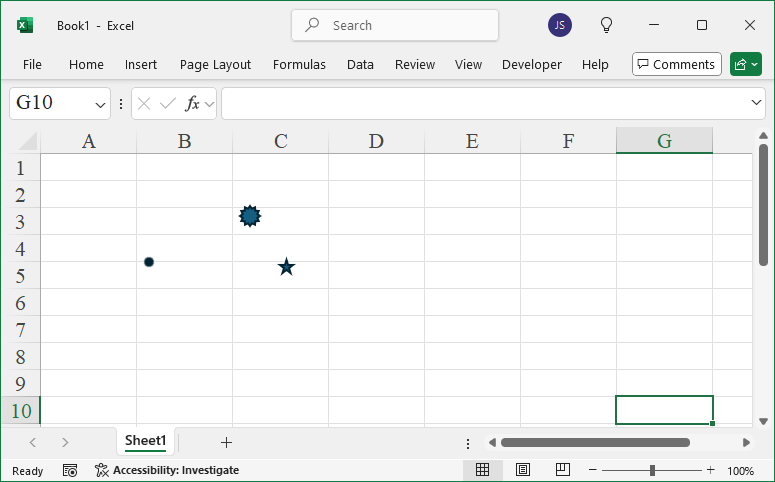
How To Use Evaluate Method Using xlwings?
Method
sht.Range(‘G7’).Value=app.api.Evaluate(‘=AVERAGE($A$1:$A$5)’)
Sample Code
# Use `Evaluate` method

import xlwings as xw    #Import the xlwings package
import os    #Import the os package

root = os.getcwd()    #Get the current path
#Create an Excel application window, visible,
#without opening a workbook
app=xw.App(visible=True, add_book=False)
#Open a data file, writable
bk=app.books.open(fullname=root+r'\Formula.xlsx',read_only=False)
sht=bk.api.Sheets(1)    #Get the worksheet

#Use `Evaluate` method
sht.Range('G7').Value=app.api.Evaluate('=AVERAGE($A$1:$A$5)')

bk.save('test.xlsx')
#bk.close()
#app.kill()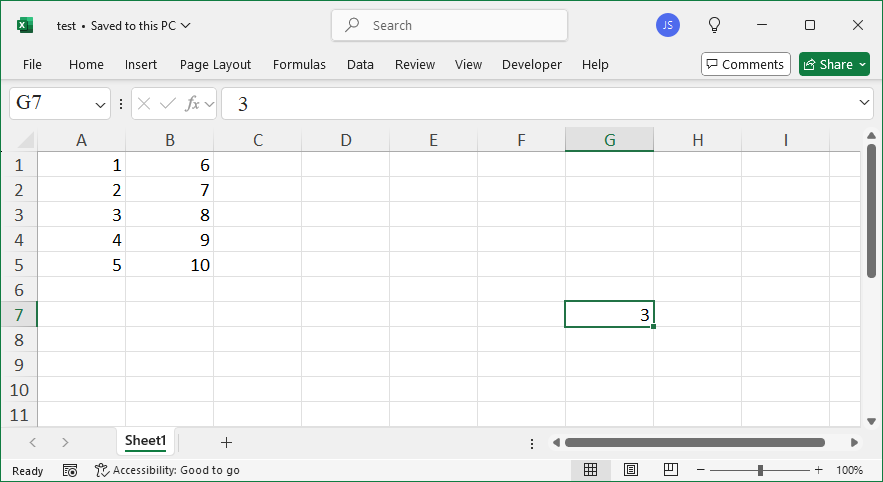
How To Use WorksheetFunction Property Using xlwings?
Method
sht.Range(‘G8’).Value=app.api.WorksheetFunction.Average(sht.Range(‘A1:A5’))
Sample Code
# Use the `WorksheetFunction` property

import xlwings as xw    #Import the xlwings package
import os    #Import the os package

root = os.getcwd()    #Get the current path
#Create an Excel application window, visible,
#without opening a workbook
app=xw.App(visible=True, add_book=False)
#Open a data file, writable
bk=app.books.open(fullname=root+r'\Formula.xlsx',read_only=False)
sht=bk.api.Sheets(1)    #Get the worksheet

#Use the `WorksheetFunction` property
sht.Range('G8').Value=app.api.WorksheetFunction.Average(sht.Range('A1:A5'))

bk.save('test.xlsx')
#bk.close()
#app.kill()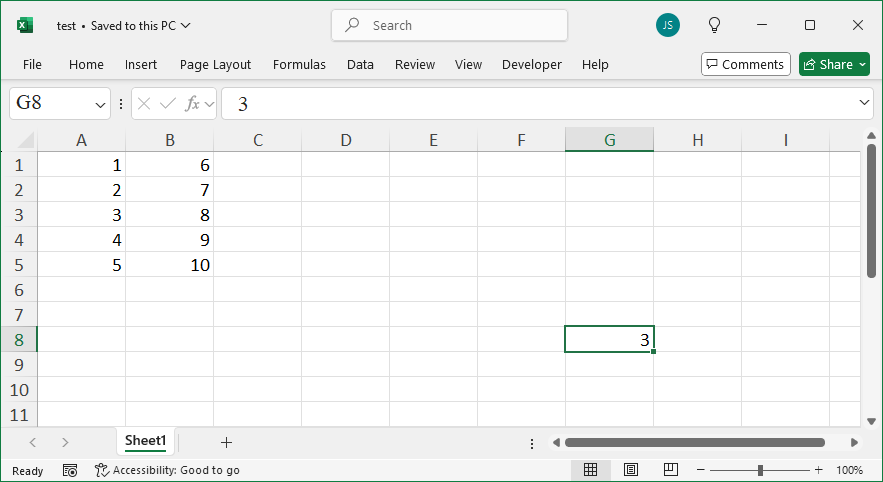
How To Enter Array Formulas using FormulaArray Property Using xlwings?
Method
sht.Range(‘E7′).FormulaArray=’=SUM(A1:A5*B1:B5)’
Sample Code
# Use `FormulaArray` property for array formulas

import xlwings as xw    #Import the xlwings package
import os    #Import the os package

root = os.getcwd()    #Get the current path
#Create an Excel application window, visible,
#without opening a workbook
app=xw.App(visible=True, add_book=False)
#Open a data file, writable
bk=app.books.open(fullname=root+r'\Formula.xlsx',read_only=False)
sht=bk.api.Sheets(1)    #Get the worksheet

#Use `FormulaArray` property for array formulas
sht.Range('E7').FormulaArray='=SUM(A1:A5*B1:B5)'

bk.save('test.xlsx')
#bk.close()
#app.kill()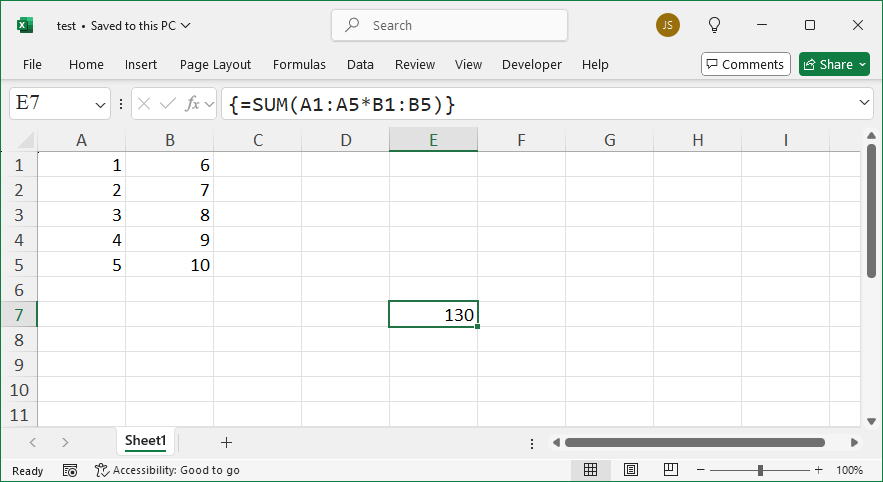
How To Enter R1C1 Style Formulas using FormulaR1C1 Property Using xlwings?
Method
sht.Range(‘C8′).FormulaR1C1=’=SQRT(R1C1)’
Sample Code
# Use `FormulaR1C1` property for R1C1-style formulas

import xlwings as xw    #Import the xlwings package
import os    #Import the os package

root = os.getcwd()    #Get the current path
#Create an Excel application window, visible,
#without opening a workbook
app=xw.App(visible=True, add_book=False)
#Open a data file, writable
bk=app.books.open(fullname=root+r'\Formula.xlsx',read_only=False)
sht=bk.api.Sheets(1)    #Get the worksheet

#Use `FormulaR1C1` property for R1C1-style formulas
sht.Range('C8').FormulaR1C1='=SQRT(R1C1)'

bk.save('test.xlsx')
#bk.close()
#app.kill()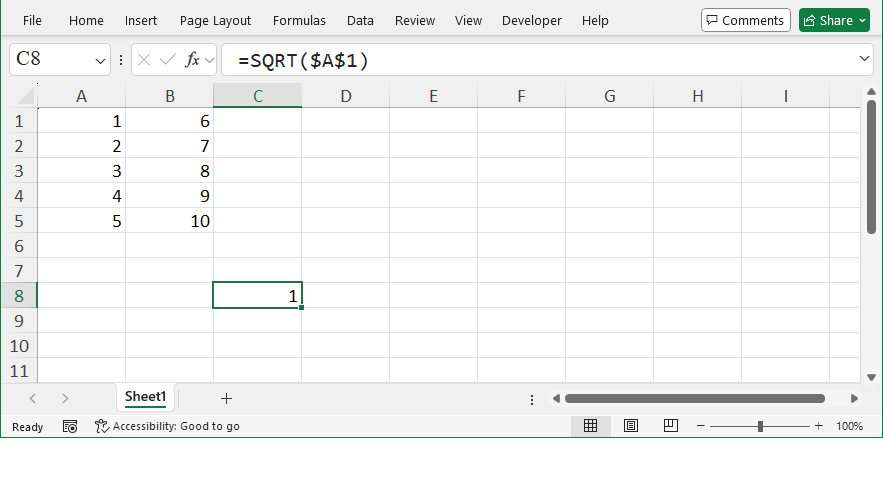
How To Enter A1 Style Formulas using Formula Property Using xlwings?
Method
sht.Range(‘C7′).Formula=’=$A$1+$A$5’
Sample Code
# Use `Formula` property for A1-style formulas

import xlwings as xw    #Import the xlwings package
import os    #Import the os package

root = os.getcwd()    #Get the current path
#Create an Excel application window, visible,
#without opening a workbook
app=xw.App(visible=True, add_book=False)
#Open a data file, writable
bk=app.books.open(fullname=root+r'\Formula.xlsx',read_only=False)
sht=bk.api.Sheets(1)    #Get the worksheet

#Use `Formula` property for A1-style formulas
sht.Range('C7').Formula='=$A$1+$A$5'

bk.save('test.xlsx')
#bk.close()
#app.kill()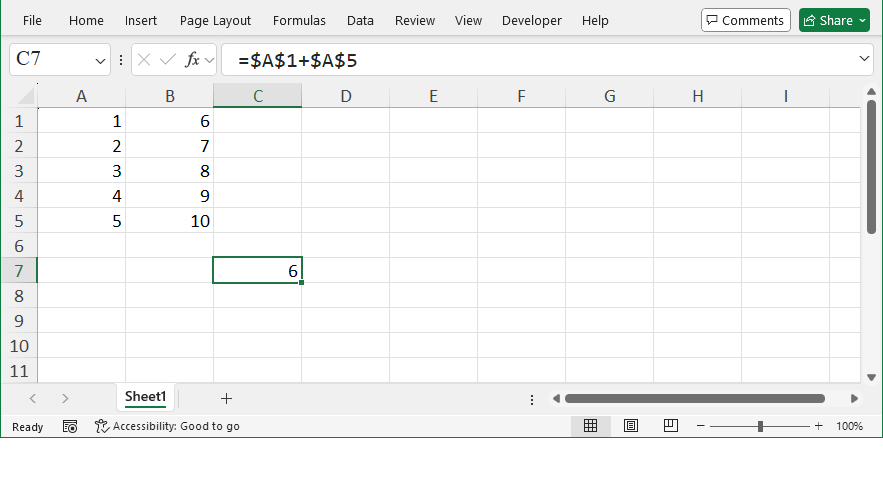
How To Enter Regular Formulas Using xlwings?
Method
sht.Range(‘A7′).Value=’=A1*B2’
sht.Range(‘A8′).Value=’=SUM(A1:A5)’
Sample Code
#Adding Formulas - Regular Formulas

import xlwings as xw    #Import the xlwings package
import os    #Import the os package

root = os.getcwd()    #Get the current path
#Create an Excel application window, visible,
#without opening a workbook
app=xw.App(visible=True, add_book=False)
#Open a data file, writable
bk=app.books.open(fullname=root+r'\Formula.xlsx',read_only=False)
sht=bk.api.Sheets(1)    #Get the worksheet

#Enter regular formulas
sht.Range('A7').Value='=A1*B2'
sht.Range('A8').Value='=SUM(A1:A5)'

bk.save('test.xlsx')
#bk.close()
#app.kill()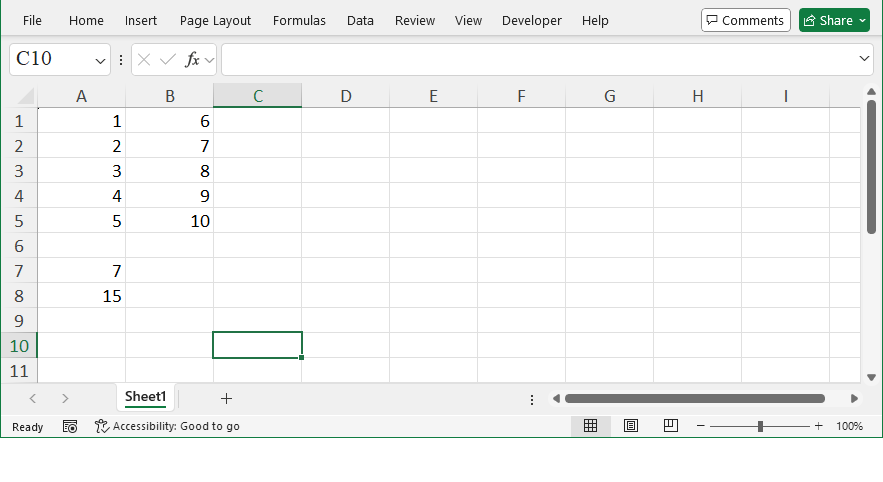
How To Exchange Excel Worksheet and Python Dictionary Data Using xlwings?
Method
Reading
#xlwings
sht.range(‘A1:B2’).options(dict).value
#sht.range(‘A4:B5’).options(dict, transpose=True).value
Writing
#xlwings
#dic={ ‘a’: 1.0, ‘b’: 2.0}
#sht.range(‘A1:B2’).options(dict).value=dic
#sht.range(‘A4:B5’).options(dict, transpose=True).value=dic
Sample Code
#Data Read/Write Between Excel Sheets and Python Dictionaries

import xlwings as xw    #Import the xlwings package

app=xw.App()
bk=app.books.open('data.xlsx')
sht=bk.sheets.active    #Get the active worksheet

#Reading
#xlwings
#print(sht.range('A1:B2').options(dict).value)
#print(sht.range('A4:B5').options(dict, transpose=True).value)

#Writing
#xlwings
dic={ 'a': 1.0, 'b': 2.0}
sht.range('A1:B2').options(dict).value=dic
sht.range('A4:B5').options(dict, transpose=True).value=dic

#bk.close()
#app.kill()


How To Write Python List Data to Excel Worksheet Using xlwings?
Method
Write rows
#xlwings
lst=[1,2,3,4,5]
sht.range(‘A1’).value=lst #Write Python data to Excel worksheet
#Or
#lst=[1,2,3,4,5]
#sht.range(‘E1’).options(transpose=True).value=lst #Transpose
#xlwings API
#lst=[[1],[2],[3],[4],[5]]
#sht.api.Range(‘C1:C5’).Value=lst #Write directly
#Or
#lst=[1,2,3,4,5]
#sht.api.Range(‘E1:E5’).Value=app.api.WorksheetFunction.Transpose(lst) #Transpose
2D data
#xlwings
#sht.range(‘A5:B6’).value=[[1,2],[3,4]]
#sht.range(‘A1′).options(expand=’table’).value=[[1,2],[3,4]]
#xlwings API
#sht.api.Range(‘A5:B6’).Value=[[1,2],[3,4]]
Sample Code
#Write Python list data to Excel worksheet

import xlwings as xw    #Import the xlwings package

app=xw.App()
bk=app.books.active    #Get the active workbook
sht=bk.sheets.active    #Get the active worksheet

#Write rows
#xlwings
#lst=[1,2,3,4,5]
#sht.range('A1').value=lst    #Write Python data to Excel worksheet
#Or
#lst=[1,2,3,4,5]
#sht.range('E1').options(transpose=True).value=lst    #Transpose

#xlwings API
#lst=[[1],[2],[3],[4],[5]]
#sht.api.Range('C1:C5').Value=lst    #Write directly
#Or
#lst=[1,2,3,4,5]
#sht.api.Range('E1:E5').Value=app.api.WorksheetFunction.Transpose(lst)    #Transpose

#2D data
#xlwings
sht.range('A5:B6').value=[[1,2],[3,4]]
sht.range('A1').options(expand='table').value=[[1,2],[3,4]]

#xlwings API
#sht.api.Range('A5:B6').Value=[[1,2],[3,4]]

#bk.close()
#app.kill()
How To Read Excel Data to Python List Using xlwings?
Method
Row data
#xlwings
bk=xw.Book()
sht=bk.sheets(1)
lst=sht.range(‘A1:E1’).value #Read data from a worksheet
print(lst)
#xlwings API
#sht=bk.api.Sheets(1)
#lst=sht.Range(‘A1:E1’).Value #Read data from a worksheet
#print(lst)
#print(list(lst[0]))
Column data
#xlwings
#lst=sht.range(‘A1:A5’).value
#print(lst)
#xlwings API
#lst=sht.Range(‘A1:E1’).Value #Read data from a worksheet
#lst2=[]
#for i in range(len(lst)):
# lst2.append(list(lst[i]))
#print(lst)
#print(lst2)
#lst3=[]
#for i in range(len(lst)):
# lst3.append(list(lst[i][0]))
#print(lst3)
Sample Code
#Reading Excel Data into Python Lists

import xlwings as xw    #Import the xlwings package

#Row data
#xlwings
app=xw.App()
bk=xw.books.open('data.xlsx')
sht=bk.sheets(1)
lst=sht.range('A1:E1').value    #Read data from a worksheet
print(lst)

#xlwings API
#sht=bk.api.Sheets(1)
#lst=sht.Range('A1:E1').Value    #Read data from a worksheet
#print(lst)
#print(list(lst[0]))

#Column data
#xlwings
lst=sht.range('A1:A5').value
print(lst)

#xlwings API
#lst=sht.Range('A1:E1').Value    #Read data from a worksheet
#lst2=[]
#for i in range(len(lst)):
#    lst2.append(list(lst[i]))
#print(lst)
#print(lst2)

#lst3=[]
#for i in range(len(lst)):
#    lst3.append(list(lst[i][0]))
#print(lst3)

#bk.close()
#app.kill()
