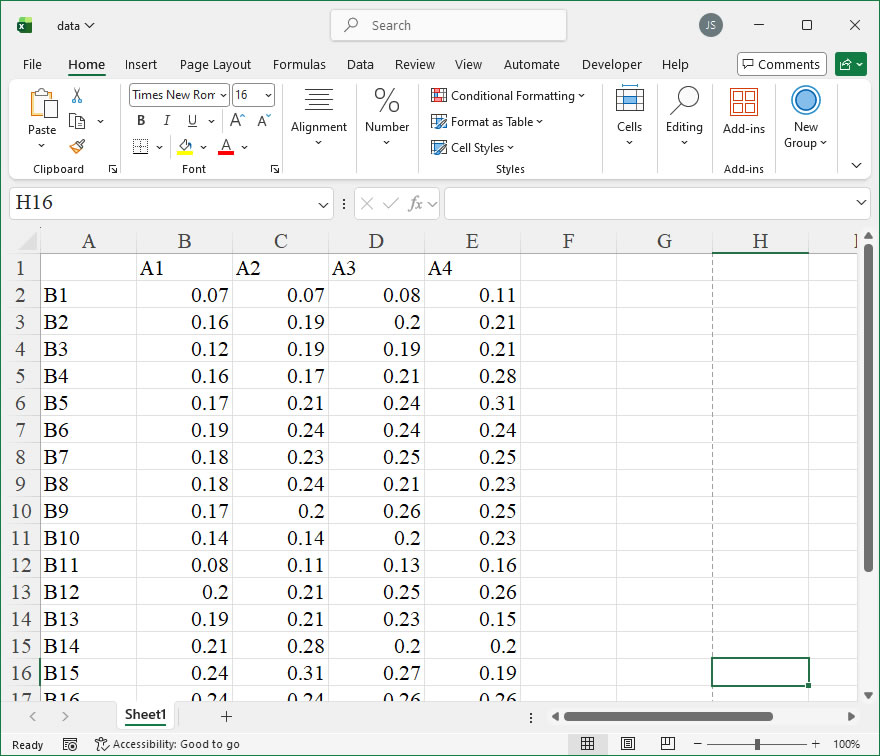
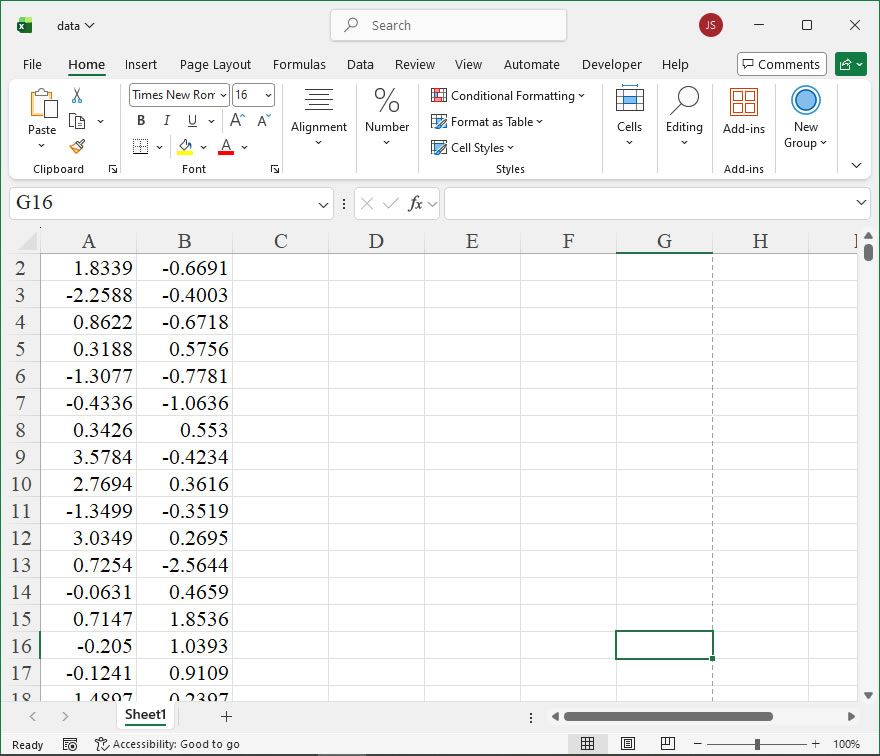
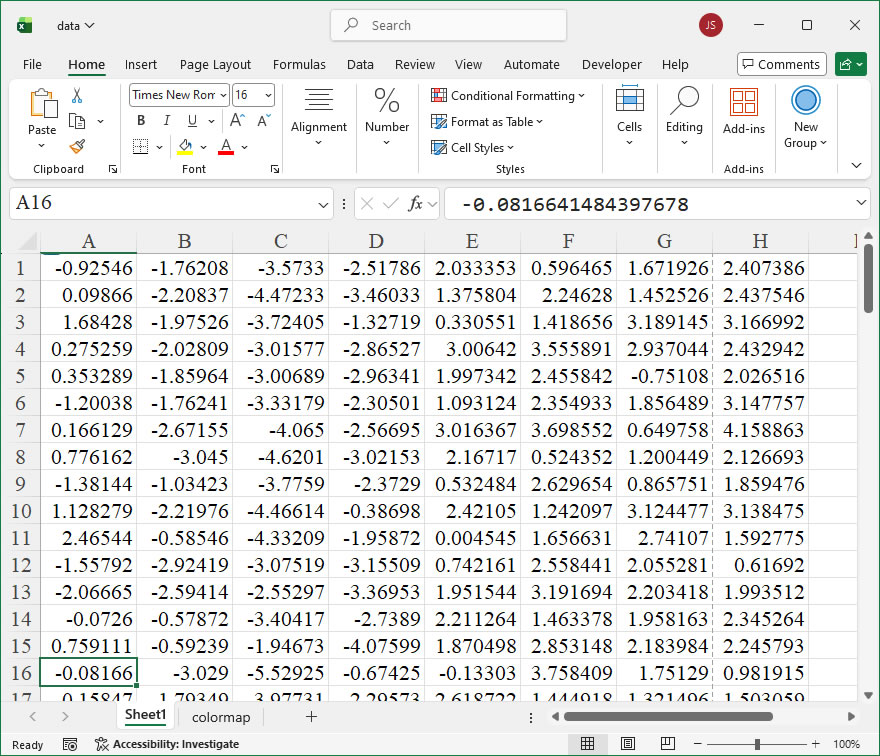
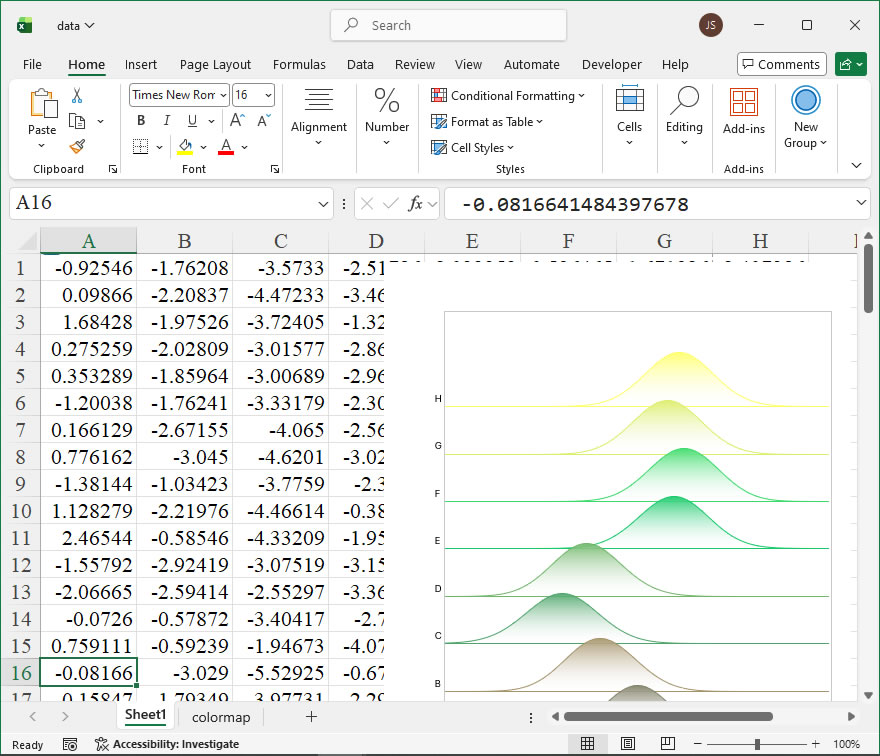
Functionality The DisplayFunctionToolTips property of the Excel Application object controls whether function tooltips are displayed. A function tooltip is the small, yellow pop-up box that appears as you begin typing a function into a formula bar or a cell. It provides a brief syntax guide and description for the function’s arguments. When DisplayFunctionToolTips is set to True, these helpful prompts are shown; when set to False, they are suppressed. This property is part of the user interface customization options and can be useful for streamlining the Excel environment for advanced users or in automated applications where pop-ups might interfere with other processes.
Syntax In xlwings, you access this property through the Application object. The property is a read/write Boolean.
app_key: The key identifier for the Excel application instance. This can be an integer index (e.g., 0 for the first instance) or the PID of the process. If you have a single instance or are using xw.Book, you can often use xw.apps.active.
Checking and Reporting the Current Setting: This example connects to the active Excel instance, reads the current DisplayFunctionToolTips setting, and prints its status.
import xlwings as xw

# Connect to the active Excel application
app = xw.apps.active

# Get the current state of function tooltips
tooltips_enabled = app.display_function_tooltips

# Report the status
if tooltips_enabled:
    print("Function tooltips are currently ENABLED.")
else:
    print("Function tooltips are currently DISABLED.")
Temporarily Disabling Tooltips for a Task: This pattern is useful when performing automated data entry or manipulation where pop-ups are not needed. It saves the original state, disables tooltips, performs its task, and then restores the original setting, ensuring the user’s preference is maintained.
import xlwings as xw

# Connect to the active Excel application and workbook
app = xw.apps.active
wb = app.books.active

# 1. Store the original setting
original_setting = app.display_function_tooltips

try:
    # 2. Disable function tooltips
    app.display_function_tooltips = False
    print("Function tooltips disabled for automation.")

    # 3. Perform automated tasks (e.g., writing formulas)
    # This example writes a simple SUM formula. No tooltip will appear.
    ws = wb.sheets[0]
    ws.range("A1").value = "Data"
    ws.range("B1").value = 10
    ws.range("B2").value = 20
    ws.range("B3").formula = "=SUM(B1:B2)"

    print(f"Formula written to B3: {ws.range('B3').formula}")

finally:
    # 4. Restore the original setting reliably
    app.display_function_tooltips = original_setting
    print(f"Function tooltips restored to: {original_setting}")
Ensuring Tooltips are Enabled for User Interaction: This example explicitly enables function tooltips, which can be part of a setup routine to ensure a user-friendly environment before handing control over to a person.
import xlwings as xw

# Start or connect to Excel
app = xw.App(visible=True) # or xw.apps.active
wb = app.books.add()

# Ensure function tooltips are turned ON
app.display_function_tooltips = True
print("Function tooltips have been enabled for user interaction.")

# Guide the user (simulated here by a formula placeholder)
ws = wb.sheets[0]
ws.range("A1").value = "Enter a function (e.g., =VLOOKUP() ) in cell B1 to see the tooltip."

# The application is now ready. Tooltips will appear as the user types.
# app.visible = True # Ensure Excel is visible if it wasn't already
import xlwings as xw
import numpy as np
import os

def kde2(dt1,dt2,x,y,w):
    #二元核密度估计
    my_sum=0
    count=0
    for i in dt1:
        for j in dt2:
            #Gaussian核函数(2D)
            my_sum+=np.exp(-((x-i)**2+(y-j)**2)/(2*w**2))/\
            (2*3.1416*w**2)
            count+=1
    return my_sum/count


root=os.getcwd()
app=xw.App(visible=True,add_book=False)
wb=app.books.open(root+r'/data.xlsx',read_only=False)
sht=wb.sheets('Sheet1')
dt1=sht.range('A1:A200').value
dt2=sht.range('B1:B200').value

#用Shapes创建图表
kdex=[0 for _ in range(40)]
kdey=[0 for _ in range(40)]
kdef=[[0 for _ in range(40)] for _ in range(40)]
for i in range(40):
    kdex[i]=(i- 20)/2
    kdey[i]=(i- 20)/2
for i in range(40):
    for j in range(40):
        kdef[i][j]=kde2(dt1,dt2,kdex[i],kdey[j],1.5)

sht2=wb.sheets.add()
sht2.name='plot'
for i in range(40):
    sht2.api.Cells(1, i+2).Value=kdex[i]
    sht2.api.Cells(i+2, 1).Value=kdey[i]
    for j in range(40):
        sht2.api.Cells(i+2,j+2).Value=kdef[i][j]

#创建曲面图表
shp=sht2.api.Shapes.AddChart2()
shp.Left=20
shp.Top=50
shp.Width=500
shp.Height=400
cht=shp.Chart
#设置图表数据范围
cht.SetSourceData(sht2.api.Range(sht2.api.Cells(2, 2),sht2.api.Cells(41, 41)))
#设置图表类型为三维曲面图
cht.ChartType=xw.constants.ChartType.xlSurface
#设置图表标题
cht.HasTitle=True
cht.ChartTitle.Text='Surface'
#设置轴标题
cht.Axes(1,1).HasTitle=True
cht.Axes(1,1).AxisTitle.Text='X Axis'
cht.Axes(3,1).HasTitle=True
cht.Axes(3,1).AxisTitle.Text='Y Axis'
cht.Axes(2,1).HasTitle=True
cht.Axes(2,1).AxisTitle.Text='Z Axis'

cht.Export(root+'/cht.jpg')
cht.Export(root+'/cht.svg')
cht.ExportAsFixedFormat(0,root+'/cht.pdf')

#wb.save()
#app.kill()
The DisplayFullScreen property of the Application object in Excel is a Boolean value that controls whether the Excel application window is displayed in full-screen mode. When set to True, Excel maximizes the window to occupy the entire screen, hiding elements such as the ribbon, formula bar, and status bar to provide a larger workspace for viewing or presenting data. This can be particularly useful for creating distraction-free dashboards, presentations, or when working with large datasets that require maximum screen real estate. Conversely, setting it to False restores the normal window view with all interface elements visible.
In xlwings, this property is accessed through the app object, which represents the Excel application. The syntax for getting or setting the DisplayFullScreen property is straightforward, as it behaves like a standard property in Python.
Syntax:
Get the current state:app.api.DisplayFullScreen
Set to full-screen mode:app.api.DisplayFullScreen = True
There are no explicit parameters for this property; it is a simple Boolean attribute. The value can be either True (to enable full-screen) or False (to disable it).
Example Usage:
Here are a few practical examples demonstrating how to use the DisplayFullScreen property with xlwings:
Enabling Full-Screen Mode: This code snippet launches Excel, opens a workbook, and switches to full-screen mode.
Toggling Full-Screen Mode: This example shows how to check the current state and toggle it based on user input or a condition.
import xlwings as xw
app = xw.App(visible=True)
workbook = app.books.add()
# Check if currently in full-screen
if app.api.DisplayFullScreen:
    print("Currently in full-screen mode. Exiting...")
    app.api.DisplayFullScreen = False
else:
    print("Switching to full-screen mode...")
    app.api.DisplayFullScreen = True
Disabling Full-Screen on Workbook Close: This ensures that full-screen mode is turned off when closing the workbook, restoring the normal Excel interface.
import xlwings as xw
app = xw.App(visible=True)
workbook = app.books.open('data.xlsx')
app.api.DisplayFullScreen = True
# Perform some operations...
workbook.save()
app.api.DisplayFullScreen = False # Exit full-screen before closing
workbook.close()
app.quit()
The DisplayFormulaBar member of the Application object in Excel is a property that controls the visibility of the formula bar in the Excel application window. This feature is particularly useful when automating tasks where screen real estate needs to be managed or when creating a cleaner interface for end-users by hiding the formula bar to reduce clutter. In xlwings, this property can be accessed and modified through the api property, which provides direct access to the underlying Excel object model, allowing for precise control over the Excel application’s behavior.
Functionality The primary function of the DisplayFormulaBar property is to toggle the display of the formula bar on or off. When set to True, the formula bar is visible; when set to False, it is hidden. This can enhance the user experience in automated reports or dashboards by minimizing distractions, or it can be used to prevent users from manually editing formulas in protected sheets, although it is not a security feature. It’s important to note that this setting applies to the entire Excel application instance, affecting all open workbooks.
Syntax In xlwings, the syntax to access and set the DisplayFormulaBar property is straightforward, utilizing the api attribute to call the native Excel VBA object model. The property is a boolean.
This returns True if the formula bar is displayed, False otherwise.
Set the state:
xw.apps[0].api.DisplayFormulaBar = False # Hides the formula bar
or
xw.apps[0].api.DisplayFormulaBar = True # Shows the formula bar
Here, xw.apps[0] refers to the first Excel application instance controlled by xlwings. If multiple instances are open, you may need to adjust the index or use xw.apps.active to target the active application.
Parameters The DisplayFormulaBar property does not accept method parameters as it is a property, not a method. It is a read/write boolean property. The value must be a Python boolean (True or False) or an integer that evaluates to a boolean (0 for False, non-zero for True).
Code Examples Here are practical examples of using the DisplayFormulaBar property with xlwings:
Hiding the formula bar upon opening a workbook:
import xlwings as xw

# Start Excel and open a workbook
app = xw.App(visible=True)
workbook = app.books.open('example.xlsx')

# Hide the formula bar
app.api.DisplayFormulaBar = False

# Perform other operations...
workbook.save()
app.quit()
Toggling the formula bar visibility based on a condition:
import xlwings as xw

# Connect to the active Excel instance
app = xw.apps.active

# Check current state and toggle
if app.api.DisplayFormulaBar:
    print("Formula bar is visible. Hiding it.")
    app.api.DisplayFormulaBar = False
else:
    print("Formula bar is hidden. Showing it.")
    app.api.DisplayFormulaBar = True
Ensuring the formula bar is visible before closing:
import xlwings as xw

# Assume an existing automation script
app = xw.apps[0]

# ... automation tasks ...

# Restore formula bar visibility for the user
app.api.DisplayFormulaBar = True

# Save and close
app.books[0].save()
app.quit()
The Application.DisplayFormulaAutoComplete property in Excel VBA is a Boolean setting that controls whether Excel shows formula AutoComplete suggestions as you type in a formula within a cell. When enabled, Excel displays a dropdown list of matching function names, defined names, and table references, aiding in formula accuracy and speeding up data entry. This feature is particularly useful when building complex formulas, as it helps avoid typographical errors in function names and provides quick access to named ranges. In xlwings, this VBA property is exposed through the api object, allowing Python scripts to get or set this application-level option programmatically, enabling automation scenarios where the user experience or formula entry behavior needs to be standardized.
Syntax in xlwings: The property is accessed via the Application object from the xlwings api. Since it is a property, it can be both read and assigned.
This returns True if AutoComplete for formulas is turned on, or False if it is off.
To set the property:
xw.apps[0].api.DisplayFormulaAutoComplete = True # or False
The property does not accept parameters; it is a simple Boolean flag. It applies to the entire Excel application instance, affecting all open workbooks. In xlwings, xw.apps[0] refers to the first Excel application instance. If multiple instances are open, you may need to adjust the index or use xw.apps.active to target the correct one.
Code Examples:
Checking the Current Status: This example retrieves the current DisplayFormulaAutoComplete setting and prints it, which is useful for logging or conditional logic in automation scripts.
import xlwings as xw
# Ensure Excel is running and connected
app = xw.apps.active
auto_complete_status = app.api.DisplayFormulaAutoComplete
print(f"Formula AutoComplete is currently: {'ON' if auto_complete_status else 'OFF'}")
Enabling Formula AutoComplete: Before performing tasks that involve heavy formula entry, you might want to ensure AutoComplete is enabled for user convenience. This script turns it on if it is off.
import xlwings as xw
app = xw.apps.active
if not app.api.DisplayFormulaAutoComplete:
    app.api.DisplayFormulaAutoComplete = True
    print("Formula AutoComplete has been enabled.")
else:
    print("Formula AutoComplete was already enabled.")
Temporarily Disabling for Performance: In scenarios where a macro or script is entering many formulas programmatically and you want to minimize screen refreshes or potential distractions, disabling AutoComplete can be beneficial. Remember to restore the original setting afterward.
import xlwings as xw
app = xw.apps.active
# Store original setting
original_setting = app.api.DisplayFormulaAutoComplete
# Disable for the operation
app.api.DisplayFormulaAutoComplete = False
# ... Perform your formula insertion tasks here ...
# Restore the original setting
app.api.DisplayFormulaAutoComplete = original_setting
print(f"Restored AutoComplete to: {original_setting}")
The DisplayExcel4Menus property of the Application object in Excel’s object model is a legacy feature primarily retained for backward compatibility with older Excel 4.0 macro sheets (XLM). In modern Excel usage via xlwings, its practical application is very limited and specialized. This property controls whether the old Excel 4.0 menu bars are displayed in the application window alongside or instead of the standard command bars. In contemporary Excel versions, these classic menus are hidden by default, as the ribbon interface is the primary UI.
Functionality: The main function is to toggle the visibility of the Excel 4.0 menu bar. This can be useful in rare scenarios where you are maintaining or interacting with very old macro sheets that rely on those specific menu commands for execution or user interaction. For most modern automation and analysis tasks using xlwings, this property is not required.
Syntax in xlwings: In xlwings, you access this property through the app object, which represents the Excel Application. The property is a Boolean (bool) value.
# To get the current state
current_state = app.api.DisplayExcel4Menus

# To set the state (True to display, False to hide)
app.api.DisplayExcel4Menus = True
The property is a simple read/write attribute. Setting it to True makes the Excel 4.0 menus visible; setting it to False hides them. Note that changes might only be fully apparent when working with an Excel 4.0 macro sheet (.xlm) as the active document.
Code Examples: Here are practical xlwings API examples demonstrating its use:
Checking the Current Status: This code checks if the legacy menus are currently displayed.
import xlwings as xw
app = xw.apps.active # Get the active Excel application
menus_visible = app.api.DisplayExcel4Menus
print(f"Excel 4.0 Menus Visible: {menus_visible}")
Toggling the Display: This script toggles the visibility state. It’s a good practice to restore the original state after your operation if you are temporarily changing it.
import xlwings as xw
app = xw.apps.active

original_state = app.api.DisplayExcel4Menus
print(f"Original state: {original_state}")

# Toggle the state
app.api.DisplayExcel4Menus = not original_state
print("Toggled display state.")

# ... Perform any tasks that require the menu state change ...

# Restore the original state
app.api.DisplayExcel4Menus = original_state
print("Original state restored.")
Ensuring Menus are Visible for a Legacy Macro: If you need to ensure the menus are visible before running an old command, you might use this pattern.
import xlwings as xw
app = xw.apps.active

# Force the menus to be displayed
app.api.DisplayExcel4Menus = True

# Assuming 'wb' is a workbook containing Excel 4.0 macros
# wb.api.ExecuteExcel4Macro("SomeOldMacro()") # Example of running an XLM macro

# It is often advisable to hide them again afterwards to clean up the UI
# app.api.DisplayExcel4Menus = False