Method
Use the `AddLabel` method of the `Shapes` object to create a label. The syntax is:
sht.api.Shapes.AddLabel(Orientation,Left,Top,Width,Height)
Where `sht` represents a worksheet object. This method returns a `Shape` object that represents the label.
|
Name |
Value |
Description |
|
msoTextOrientationDownward |
3 |
Downward |
|
msoTextOrientationHorizontal |
1 |
Horizontal |
|
msoTextOrientationHorizontalRotatedFarEast |
6 |
Horizontal and rotated for East Asian languages support |
|
msoTextOrientationMixed |
-2 |
Not supported |
|
msoTextOrientationUpward |
2 |
Upward |
|
msoTextOrientationVertical |
5 |
Vertical |
|
msoTextOrientationVerticalFarEast |
4 |
Vertical for East Asian languages support |
shp=sht.api.Shapes.AddLabel(1,100,20,60,150) #Add labels
shp.TextFrame2.TextRange.Characters.Text =’Test Python Label’ #Label text
Sample Code
#Hide formulas

import xlwings as xw    #Import the xlwings package
import os    #Import the os package

root = os.getcwd()    #Get the current path
#Create an Excel application window, visible,
#without opening a workbook
app=xw.App()
bk=app.books.active
sht=bk.api.Sheets(1)    #Get the worksheet

#Hide formulas
sht.Range('C1').Value=10
sht.Range('A1').Formula='=C1+2'
sht.Range('B1').Formula='=C1+5'
rng=sht.Range('A1:B1')
rng.FormulaHidden=True
sht.Protect()

#bk.save()
#bk.close()
#app.kill()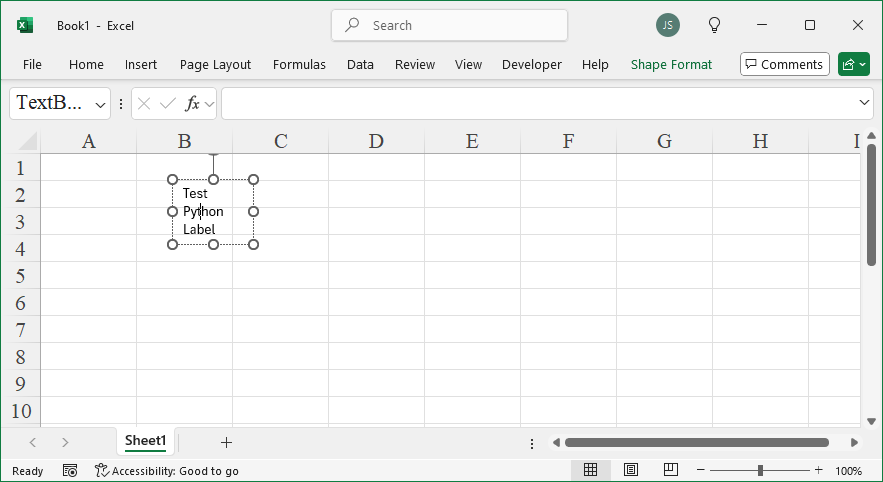
Leave a Reply