Archive

How To Create 3D Bubble Chart Using xlwings?

Example

Code

import xlwings as xw
import os

def set_style(cht):
    cht.ChartArea.Format.Line.Visible=False
    cht.PlotArea.Format.Fill.Visible = False
    cht.PlotArea.Format.Line.Visible = True
    cht.PlotArea.Format.Line.ForeColor.RGB=xw.utils.rgb_to_int((200,200,200))
    #cht.PlotArea.Format.Line.ForeColor.ObjectThemeColor = msoThemeColorText1
    ax1 = cht.Axes(1)
    ax2 = cht.Axes(2)
    ax1.HasTitle = True
    ax1.AxisTitle.Text = 'Values 1'
    ax1.AxisTitle.Font.Size = 10
    ax1.TickLabels.Font.Size = 8
    #ax1.TickLabels.NumberFormat = '0.00'
    ax1.HasMajorGridlines = True
    ax2.HasTitle = True
    ax2.AxisTitle.Text = 'Values 2'
    ax2.AxisTitle.Font.Size = 10
    ax2.TickLabels.Font.Size = 8
    ax2.HasMajorGridlines = True
    cht.HasTitle = True
    #cht.ChartTitle.Caption = 'Plot'
    #cht.ChartTitle.Font.Size = 12
    ax1.CrossesAt=ax1.MinimumScale
    ax2.CrossesAt=ax2.MinimumScale

root=os.getcwd()
app=xw.App(visible=True,add_book=False)
wb=app.books.open(root+r'/data.xlsx',read_only=False)
sht=wb.sheets('Sheet1')

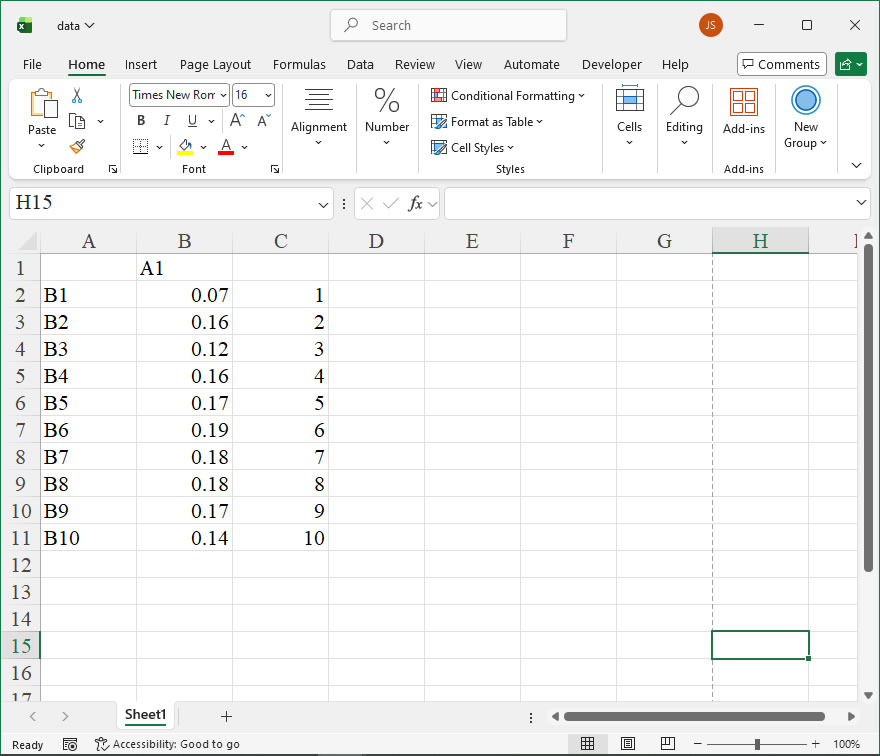
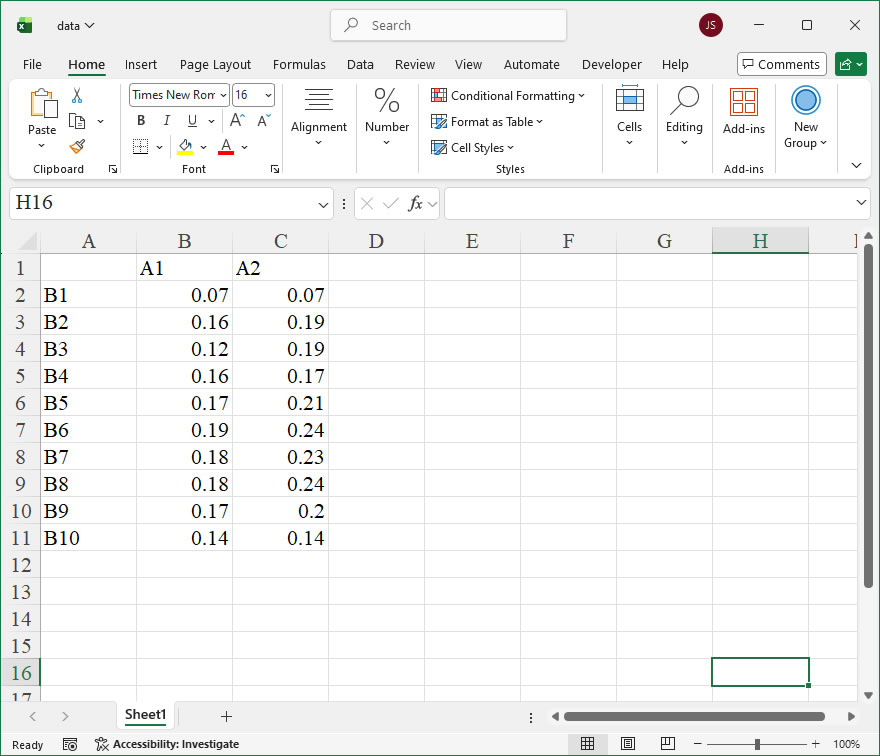
sht.api.Range('A1:C10').Select()  #
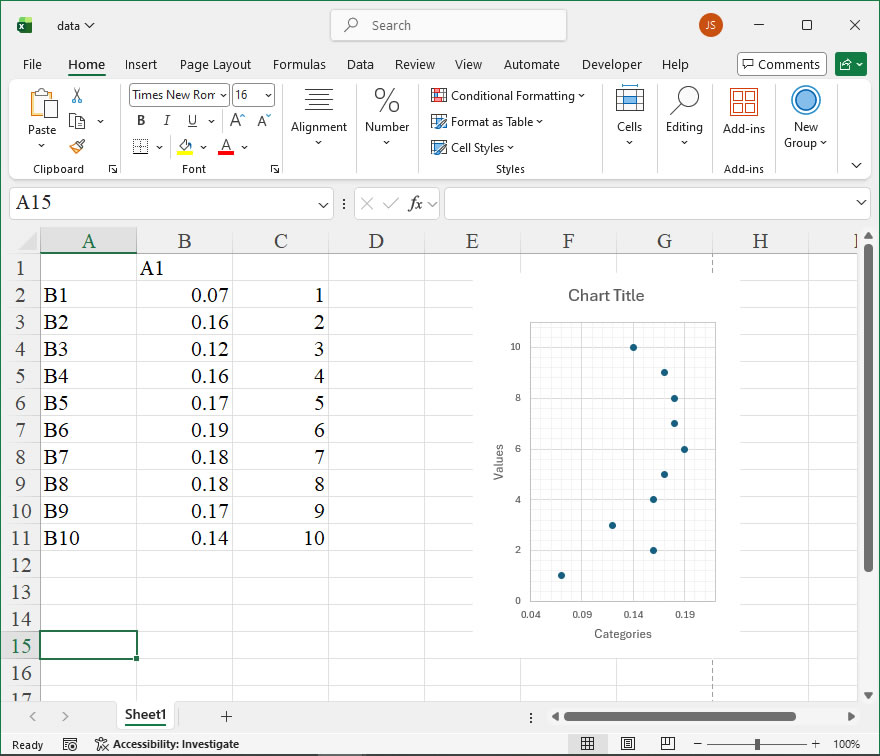
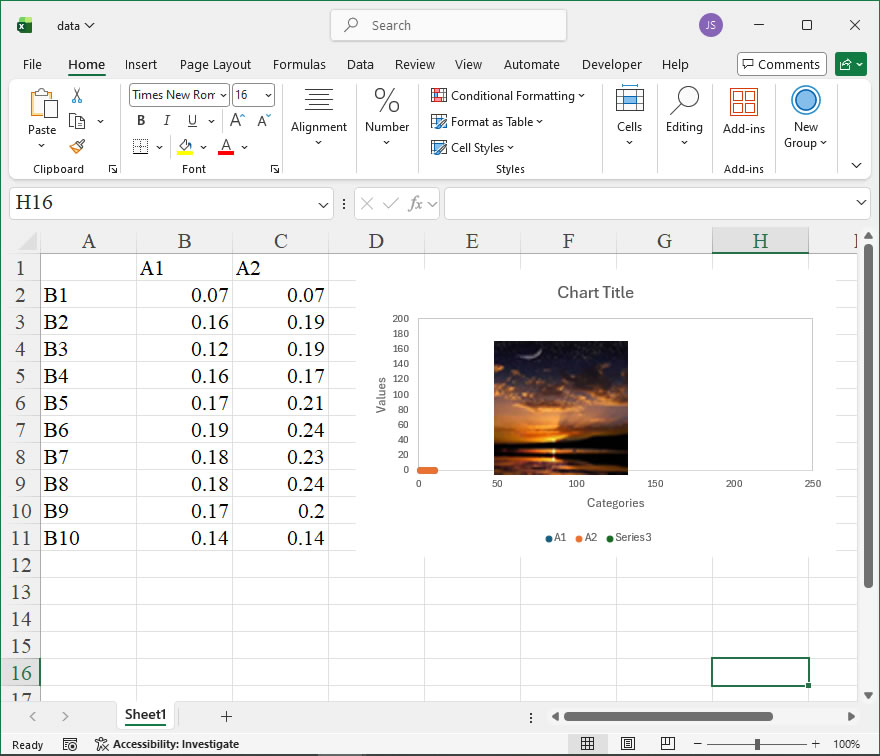
shp=sht.api.Shapes.AddChart2(-1,xw.constants.ChartType.xlBubble3DEffect,20,20,300,200,True)
cht=shp.Chart  #

set_style(cht)

cht.Export(root+'/cht.jpg')
cht.Export(root+'/cht.svg')
cht.ExportAsFixedFormat(0,root+'/cht.pdf')

#wb.save()
#app.kill()

How to use Application.CalculateBeforeSave in the xlwings API way

The Application.CalculateBeforeSave property in Excel’s object model controls whether calculation occurs automatically before a workbook is saved. This setting is particularly useful in large or complex workbooks where manual calculation mode is enabled to improve performance during data entry or manipulation. By setting CalculateBeforeSave to True, you ensure all formulas are recalculated with the latest data upon saving, preventing outdated results. When set to False, Excel skips this recalculation step, which can speed up the saving process but may leave formulas unupdated.

In xlwings, you can access this property through the Application object. The syntax is straightforward: app.calculate_before_save, where app represents the xlwings App instance. This property accepts a Boolean value: True enables pre-save calculation, and False disables it. It’s important to note that this is a global setting applied to the Excel application instance, affecting all open workbooks managed by that instance. You can both retrieve the current setting and modify it as needed.

For example, to check the current CalculateBeforeSave setting using xlwings, you can use the following code:

import xlwings as xw

# Connect to the active Excel instance
app = xw.apps.active

# Get the current CalculateBeforeSave value
current_setting = app.calculate_before_save
print(f"CalculateBeforeSave is currently set to: {current_setting}")

To change the setting, assign a new Boolean value. The code below disables calculation before saving, which might be beneficial for performance in large workbooks:

import xlwings as xw

app = xlwings.apps.active
# Disable calculation before saving
app.calculate_before_save = False
print("CalculateBeforeSave has been disabled.")

If you need to enable it again to ensure data accuracy, simply set it to True:

app.calculate_before_save = True
print("CalculateBeforeSave has been enabled.")

A practical use case involves toggling this property during automated processes. For instance, if you’re running a script that makes numerous changes and saves intermittently, disabling CalculateBeforeSave can reduce overhead. After completing all updates, you can re-enable it and force a manual recalculation before the final save:

import xlwings as xw

app = xw.apps.active
workbook = app.books.active

# Disable calculation to speed up intermediate saves
app.calculate_before_save = False
# Perform data manipulations...
workbook.save('temp_save.xlsx')

# Re-enable calculation and recalculate before final save
app.calculate_before_save = True
workbook.calculate()
workbook.save('final_save.xlsx')

How To Create 2D Bubble Chart Using xlwings?

Example

Code

import xlwings as xw
import os

def set_style(cht):
    cht.ChartArea.Format.Line.Visible=False
    cht.PlotArea.Format.Fill.Visible = False
    cht.PlotArea.Format.Line.Visible = True
    cht.PlotArea.Format.Line.ForeColor.RGB=xw.utils.rgb_to_int((200,200,200))
    #cht.PlotArea.Format.Line.ForeColor.ObjectThemeColor = msoThemeColorText1
    ax1 = cht.Axes(1)
    ax2 = cht.Axes(2)
    ax1.HasTitle = True
    ax1.AxisTitle.Text = 'Values 1'
    ax1.AxisTitle.Font.Size = 10
    ax1.TickLabels.Font.Size = 8
    #ax1.TickLabels.NumberFormat = '0.00'
    ax1.HasMajorGridlines = True
    ax2.HasTitle = True
    ax2.AxisTitle.Text = 'Values 2'
    ax2.AxisTitle.Font.Size = 10
    ax2.TickLabels.Font.Size = 8
    ax2.HasMajorGridlines = True
    cht.HasTitle = True
    #cht.ChartTitle.Caption = 'Plot'
    #cht.ChartTitle.Font.Size = 12
    ax1.CrossesAt=ax1.MinimumScale
    ax2.CrossesAt=ax2.MinimumScale

root=os.getcwd()
app=xw.App(visible=True,add_book=False)
wb=app.books.open(root+r'/data.xlsx',read_only=False)
sht=wb.sheets('Sheet1')

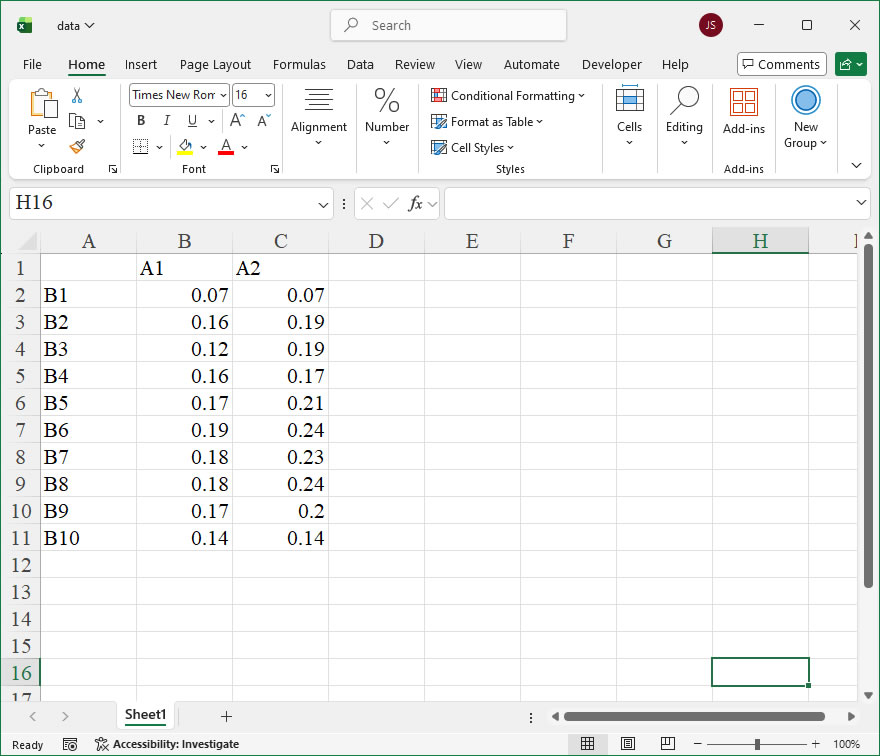
sht.api.Range('A1:C10').Select()  #
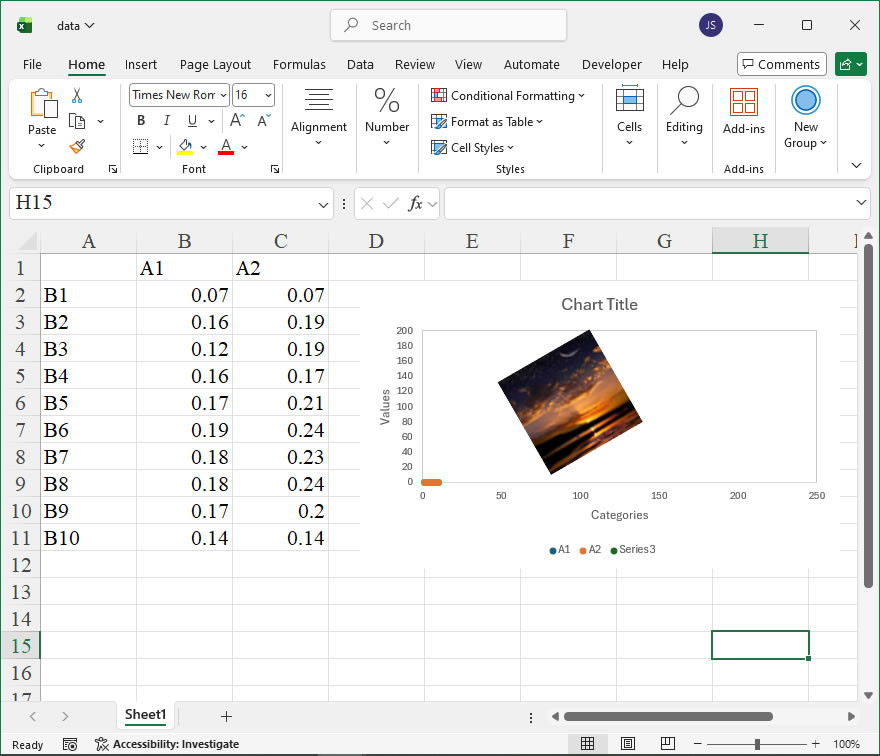
shp=sht.api.Shapes.AddChart2(-1,xw.constants.ChartType.xlBubble,20,20,300,200,True)
cht=shp.Chart  #

set_style(cht)

cht.Export(root+'/cht.jpg')
cht.Export(root+'/cht.svg')
cht.ExportAsFixedFormat(0,root+'/cht.pdf')

#wb.save()
#app.kill()

How to use Application.Build in the xlwings API way

The Application.Build property in Excel’s object model represents the build number of the Excel application. This read-only property returns a Long value that corresponds to the specific compilation version of Excel. It is particularly useful for developers who need to implement version-specific logic or ensure compatibility across different builds of Excel, as it provides a more granular identifier than the major version number alone.

In xlwings, the Application object is accessed via the app object when you have an instance of an Excel application. The Build property can be retrieved directly as an attribute. The syntax is straightforward: after establishing a connection to Excel, you simply call .build on the app object. There are no parameters required for this property.

Syntax:

app.build

This returns an integer representing the build number. For example, in Excel 365, this might be a number like 16.0.xxxxx, but note that Build returns only the numeric build part.

Example Usage:
Consider a scenario where you are automating a report and need to check if the Excel build is compatible with a certain feature. You can retrieve the build number and use it in conditional statements. Below is a code example using xlwings:

import xlwings as xw

# Connect to the active Excel instance or start a new one
app = xw.apps.active if xw.apps.active else xw.App()

# Get the build number
build_number = app.build

# Output the build number
print(f"Excel Build Number: {build_number}")

# Example: Check for a specific build range (e.g., builds after 15000)
if build_number > 15000:
    print("This build supports advanced features.")
else:
    print("Consider updating Excel for full functionality.")

# Close the app if it was created in this script (optional)
if not xw.apps.active:
    app.quit()

How To Create Complex Scatter Plot Using xlwings?

Example

Code

import xlwings as xw
import os

def set_style(cht):
    cht.ChartArea.Format.Line.Visible=False
    cht.PlotArea.Format.Fill.Visible = False
    cht.PlotArea.Format.Line.Visible = True
    cht.PlotArea.Format.Line.ForeColor.RGB=xw.utils.rgb_to_int((200,200,200))
    #cht.PlotArea.Format.Line.ForeColor.ObjectThemeColor = msoThemeColorText1
    ax1 = cht.Axes(1)
    ax2 = cht.Axes(2)
    ax1.HasTitle = True
    ax1.AxisTitle.Text = 'Values 1'
    ax1.AxisTitle.Font.Size = 10
    ax1.TickLabels.Font.Size = 8
    #ax1.TickLabels.NumberFormat = '0.00'
    ax1.HasMajorGridlines = True
    ax2.HasTitle = True
    ax2.AxisTitle.Text = 'Values 2'
    ax2.AxisTitle.Font.Size = 10
    ax2.TickLabels.Font.Size = 8
    ax2.HasMajorGridlines = True
    cht.HasTitle = True
    #cht.ChartTitle.Caption = 'Plot'
    #cht.ChartTitle.Font.Size = 12
    ax1.CrossesAt=ax1.MinimumScale
    ax2.CrossesAt=ax2.MinimumScale

root=os.getcwd()
app=xw.App(visible=True,add_book=False)
wb=app.books.open(root+r'/data.xlsx',read_only=False)
sht=wb.sheets('Sheet1')

sht.api.Range('A1:B100').Select()  #
shp=sht.api.Shapes.AddChart2(-1,xw.constants.ChartType.xlXYScatter,20,20,300,200,True)
cht=shp.Chart  #

ser=cht.SeriesCollection().NewSeries()
ser.ChartType=xw.constants.ChartType.xlXYScatter
ser.XValues=sht.api.Range('C1:C100')
ser.Values=sht.api.Range('D1:D100')

set_style(cht)

cht.Export(root+'/cht.jpg')
cht.Export(root+'/cht.svg')
cht.ExportAsFixedFormat(0,root+'/cht.pdf')

#wb.save()
#app.kill()

How to use Application.AutoRecover in the xlwings API way

The AutoRecover member of the Application object in Excel’s object model is a critical feature for data integrity and user productivity. In xlwings, this functionality is accessible through the api property, allowing Python scripts to interact with Excel’s native automation interface. The AutoRecover object itself provides properties that enable developers to control and query Excel’s automatic file recovery settings programmatically. This is particularly useful in automation scripts where workbook stability and recovery options need to be managed dynamically, such as in long-running data processing tasks or when deploying Excel-based solutions in environments with intermittent connectivity.

In xlwings, the syntax to access the AutoRecover member is straightforward, as it is a property of the Application object. The typical approach involves obtaining the Excel application instance from a workbook or creating one, then accessing the property.

The syntax is:

app.api.AutoRecover

where app is the xlwings App instance representing the Excel application. The AutoRecover object does not have methods in the traditional sense but exposes several key properties that can be read or set. These properties include Path, which specifies the directory where AutoRecover files are saved, and Time, which sets the time interval in minutes for automatic saving of recovery information. Both properties are of type Variant in Excel’s object model and can be accessed as attributes in xlwings.

For example, app.api.AutoRecover.Path returns a string representing the path, and app.api.AutoRecover.Time returns an integer. Setting these properties is equally simple: assign a string to Path or an integer to Time within valid ranges (e.g., Time must be between 1 and 120 minutes). It’s important to note that changes to these properties apply globally to the Excel instance and may affect other open workbooks.

To illustrate the usage, consider a scenario where an automation script needs to ensure that AutoRecover is configured optimally before performing intensive operations. The following xlwings code examples demonstrate how to interact with the AutoRecover member. First, import xlwings and start an Excel application:

import xlwings as xw;

app = xw.App(visible=False)

To retrieve the current AutoRecover path, use current_path = app.api.AutoRecover.Path; print(current_path). To set a new path, such as a dedicated network drive for recovery files, execute app.api.AutoRecover.Path = r'C:\AutoRecoverBackup'. For the time interval, fetch the current setting with current_time = app.api.AutoRecover.Time; print(current_time), and update it to 10 minutes with app.api.AutoRecover.Time = 10. After completing operations, it’s good practice to reset or close the application: app.quit(). These examples show how xlwings seamlessly bridges Python and Excel, enabling robust management of recovery settings to prevent data loss in automated workflows.

How To Create Scatter Plot Using xlwings?

Example

Code

import xlwings as xw
import os

def set_style(cht):
    cht.ChartArea.Format.Line.Visible=False
    cht.PlotArea.Format.Fill.Visible = False
    cht.PlotArea.Format.Line.Visible = True
    cht.PlotArea.Format.Line.ForeColor.RGB=xw.utils.rgb_to_int((200,200,200))
    #cht.PlotArea.Format.Line.ForeColor.ObjectThemeColor = msoThemeColorText1
    ax1 = cht.Axes(1)
    ax2 = cht.Axes(2)
    ax1.HasTitle = True
    ax1.AxisTitle.Text = 'Values 1'
    ax1.AxisTitle.Font.Size = 10
    ax1.TickLabels.Font.Size = 8
    #ax1.TickLabels.NumberFormat = '0.00'
    ax1.HasMajorGridlines = True
    ax2.HasTitle = True
    ax2.AxisTitle.Text = 'Values 2'
    ax2.AxisTitle.Font.Size = 10
    ax2.TickLabels.Font.Size = 8
    ax2.HasMajorGridlines = True
    cht.HasTitle = True
    #cht.ChartTitle.Caption = 'Plot'
    #cht.ChartTitle.Font.Size = 12
    ax1.CrossesAt=ax1.MinimumScale
    ax2.CrossesAt=ax2.MinimumScale

root=os.getcwd()
app=xw.App(visible=True,add_book=False)
wb=app.books.open(root+r'/data.xlsx',read_only=False)
sht=wb.sheets('Sheet1')

sht.api.Range('A1:B100').Select()  #
shp=sht.api.Shapes.AddChart2(-1,xw.constants.ChartType.xlXYScatter,20,20,300,200,True)
cht=shp.Chart  #

set_style(cht)

cht.Export(root+'/cht.jpg')
cht.Export(root+'/cht.svg')
cht.ExportAsFixedFormat(0,root+'/cht.pdf')

#wb.save()
#app.kill()

How to use Application.AutoPercentEntry in the xlwings API way

The AutoPercentEntry property of the Application object in Excel is a feature that controls the automatic conversion of decimal numbers into percentages when entered into cells. When this property is set to True, any decimal value (e.g., entering 0.15) typed into a cell will automatically be formatted as a percentage (15%). This can significantly streamline data entry in scenarios where percentage inputs are frequent, reducing the need for manual formatting. However, it’s important to note that this is a global application setting, meaning it affects all open workbooks and worksheets. Users should be cautious, as enabling it might inadvertently convert decimal data intended as other numeric types.

In the xlwings API, which provides a powerful bridge between Python and Excel, you access this property through the app object, which represents the Excel application. The property is available for both getting its current state and setting it to a new value.

Syntax in xlwings:

app.api.AutoPercentEntry
  • Get: current_state = app.api.AutoPercentEntry
  • Set: app.api.AutoPercentEntry = new_value
  • Parameters: This property does not take parameters. It is a Boolean property where True enables automatic percentage entry and False disables it.

Code Examples:

  1. Checking the Current Setting:
import xlwings as xw
app = xw.apps.active # Get the active Excel application
is_enabled = app.api.AutoPercentEntry
print(f"AutoPercentEntry is currently set to: {is_enabled}")
  1. Enabling AutoPercentEntry:
import xlwings as xw
app = xw.apps.active
app.api.AutoPercentEntry = True
print("AutoPercentEntry has been enabled.")
# Now, entering 0.2 in a cell will display as 20%.
  1. Disabling AutoPercentEntry:
import xlwings as xw
app = xw.apps.active
app.api.AutoPercentEntry = False
print("AutoPercentEntry has been disabled.")
# Decimal entries will now remain as decimals unless manually formatted.
  1. Practical Workflow Example: This script toggles the setting, enters a test value, and then restores the original state.
import xlwings as xw
app = xw.apps.active
original_setting = app.api.AutoPercentEntry

# Enable for a task
app.api.AutoPercentEntry = True
wb = app.books.active
ws = wb.sheets[0]
ws.range('A1').value = 0.35 # Will appear as 35% in Excel
print("Test value 0.35 entered into A1 with AutoPercentEntry ON.")

# Restore original setting
app.api.AutoPercentEntry = original_setting
print(f"AutoPercentEntry restored to {original_setting}.")

How To Create Doughnut Chart Using xlwings? 2

Example

Code

import xlwings as xw
import os

def set_style(cht):
    cht.ChartArea.Format.Line.Visible=False
    cht.PlotArea.Format.Fill.Visible = False
    cht.PlotArea.Format.Line.Visible = True
    cht.PlotArea.Format.Line.ForeColor.RGB=xw.utils.rgb_to_int((200,200,200))
    #cht.PlotArea.Format.Line.ForeColor.ObjectThemeColor = msoThemeColorText1
    cht.HasTitle = True

root=os.getcwd()
app=xw.App(visible=True,add_book=False)
wb=app.books.open(root+r'/data.xlsx',read_only=False)
sht=wb.sheets('Sheet1')

sht.api.Range('A2:B11').Select()  #
shp=sht.api.Shapes.AddChart2(-1,xw.constants.ChartType.xlDoughnut,20,20,250,250,True)
cht=shp.Chart  #
cht.SeriesCollection(1).Points(2).Explosion=16

set_style(cht)

cht.Export(root+'/cht.jpg')
cht.Export(root+'/cht.svg')
cht.ExportAsFixedFormat(0,root+'/cht.pdf')

#wb.save()
#app.kill()

How to use Application.AutomationSecurity in the xlwings API way

The AutomationSecurity property of the Application object in Excel is a crucial setting for controlling macro security when automating Excel through external applications like Python using the xlwings library. It determines the security level that Excel uses when opening files programmatically, which can affect whether macros are enabled or disabled automatically. This property is particularly important in scenarios where automation scripts need to ensure consistent security behavior, especially in environments with varying macro settings. By setting AutomationSecurity, developers can programmatically override the default security settings of Excel, providing more control over macro execution during automated processes. This helps in maintaining security protocols while allowing necessary macros to run in controlled automation tasks.

In xlwings, the AutomationSecurity property is accessed through the app object, which represents the Excel application. The syntax for setting or getting this property is straightforward, as it corresponds directly to the Excel Object Model. The property accepts integer values that correspond to specific security levels defined by Excel. The primary values are:

  • 1 (msoAutomationSecurityLow): This setting enables all macros to run without prompting. It is useful in trusted environments but poses security risks if used with untrusted files.
  • 2 (msoAutomationSecurityByUI): Excel uses the macro security level set in the user interface (via Trust Center settings). This is the default behavior when automation is initiated.
  • 3 (msoAutomationSecurityForceDisable): This setting disables all macros automatically, regardless of the file’s trust settings. It is the most secure option, preventing any macro execution.

To use this property in xlwings, you first need to instantiate an Excel application object. The property can be set before opening a workbook to influence how Excel handles macros in that file. For example, if you want to ensure macros are disabled during an automated data processing task, you can set AutomationSecurity to 3. Conversely, if you trust the source and need macros to run, set it to 1. It’s essential to note that changing this property affects all subsequent workbooks opened in that instance of Excel until it is changed again or the application is closed.

Here is a code example demonstrating the use of AutomationSecurity in xlwings:

import xlwings as xw

# Start a new Excel application instance
app = xw.App(visible=False) # Run Excel in the background

# Get the current AutomationSecurity setting
current_security = app.api.AutomationSecurity
print(f"Current AutomationSecurity setting: {current_security}")

# Set AutomationSecurity to disable all macros (msoAutomationSecurityForceDisable)
app.api.AutomationSecurity = 3
print("AutomationSecurity set to disable all macros.")

# Open a workbook that contains macros
wb = app.books.open('example_with_macros.xlsx')

# Perform some operations, such as reading data
data = wb.sheets['Sheet1'].range('A1').value
print(f"Data from A1: {data}")

# Set AutomationSecurity back to use UI settings (msoAutomationSecurityByUI)
app.api.AutomationSecurity = 2
print("AutomationSecurity reset to UI default.")

# Close the workbook without saving
wb.close()

# Quit the Excel application
app.quit()