Archive

How To Create Scatter Plot Using xlwings?

Example

Code

import xlwings as xw
import os

def set_style(cht):
    cht.ChartArea.Format.Line.Visible=False
    cht.PlotArea.Format.Fill.Visible = False
    cht.PlotArea.Format.Line.Visible = True
    cht.PlotArea.Format.Line.ForeColor.RGB=xw.utils.rgb_to_int((200,200,200))
    #cht.PlotArea.Format.Line.ForeColor.ObjectThemeColor = msoThemeColorText1
    ax1 = cht.Axes(1)
    ax2 = cht.Axes(2)
    ax1.HasTitle = True
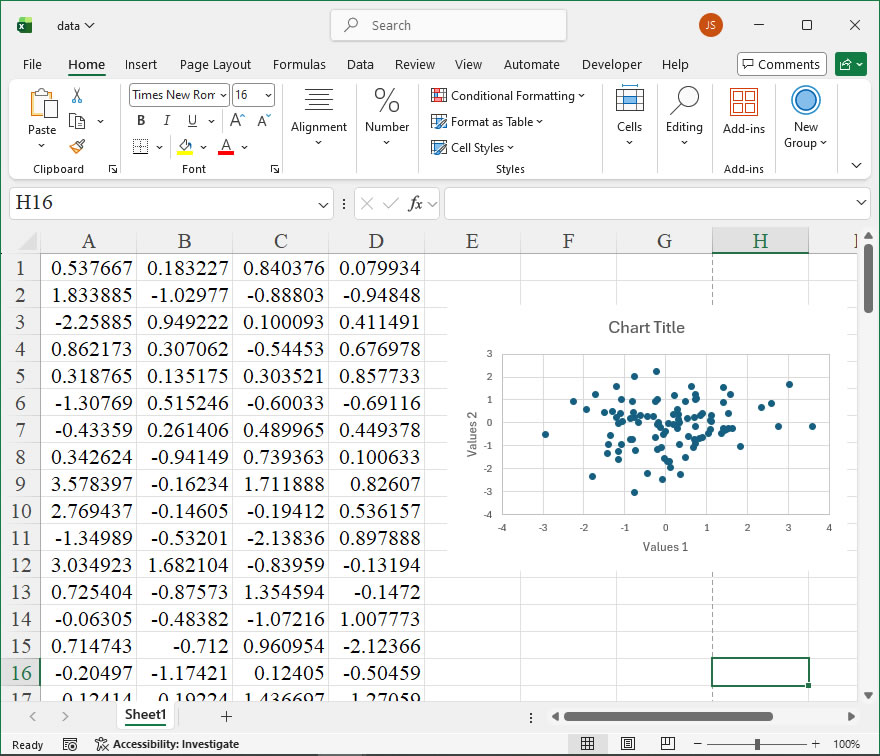
    ax1.AxisTitle.Text = 'Values 1'
    ax1.AxisTitle.Font.Size = 10
    ax1.TickLabels.Font.Size = 8
    #ax1.TickLabels.NumberFormat = '0.00'
    ax1.HasMajorGridlines = True
    ax2.HasTitle = True
    ax2.AxisTitle.Text = 'Values 2'
    ax2.AxisTitle.Font.Size = 10
    ax2.TickLabels.Font.Size = 8
    ax2.HasMajorGridlines = True
    cht.HasTitle = True
    #cht.ChartTitle.Caption = 'Plot'
    #cht.ChartTitle.Font.Size = 12
    ax1.CrossesAt=ax1.MinimumScale
    ax2.CrossesAt=ax2.MinimumScale

root=os.getcwd()
app=xw.App(visible=True,add_book=False)
wb=app.books.open(root+r'/data.xlsx',read_only=False)
sht=wb.sheets('Sheet1')

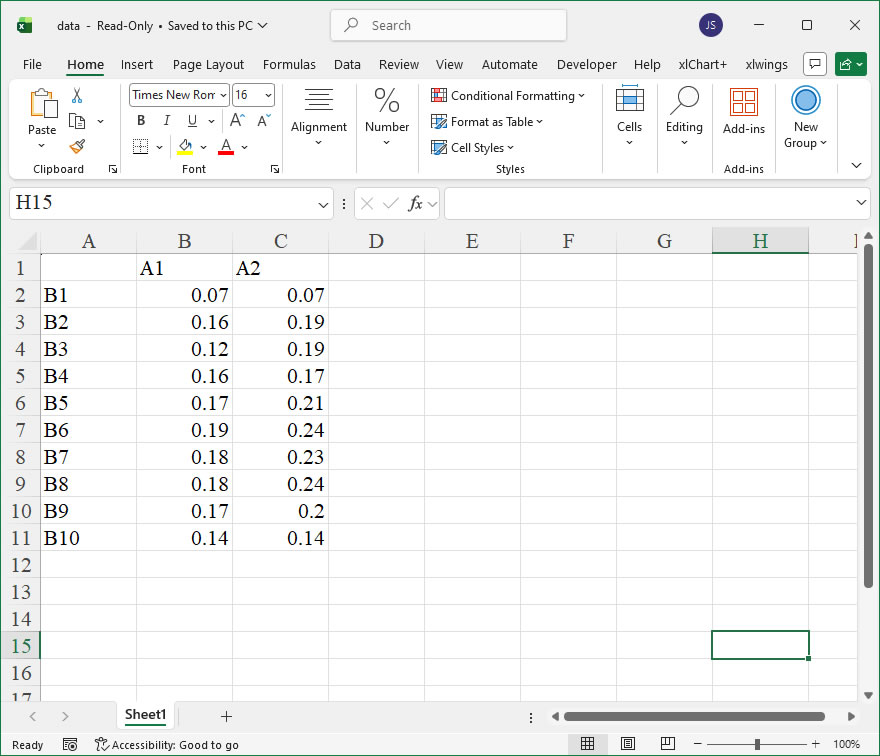
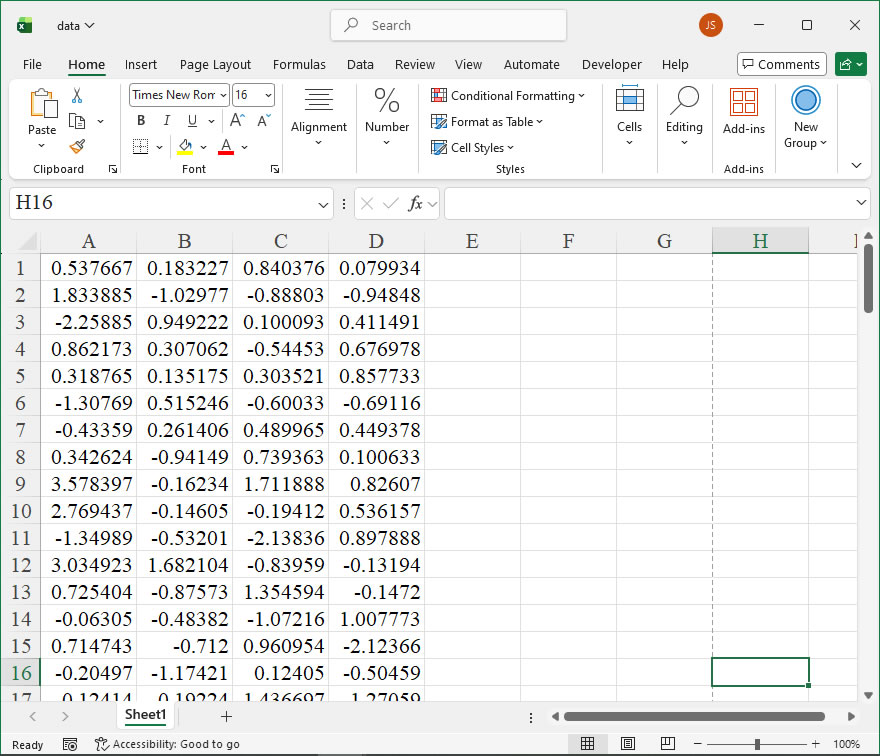
sht.api.Range('A1:B100').Select()  #
shp=sht.api.Shapes.AddChart2(-1,xw.constants.ChartType.xlXYScatter,20,20,300,200,True)
cht=shp.Chart  #

set_style(cht)

cht.Export(root+'/cht.jpg')
cht.Export(root+'/cht.svg')
cht.ExportAsFixedFormat(0,root+'/cht.pdf')

#wb.save()
#app.kill()

How to use Application.AutoPercentEntry in the xlwings API way

The AutoPercentEntry property of the Application object in Excel is a feature that controls the automatic conversion of decimal numbers into percentages when entered into cells. When this property is set to True, any decimal value (e.g., entering 0.15) typed into a cell will automatically be formatted as a percentage (15%). This can significantly streamline data entry in scenarios where percentage inputs are frequent, reducing the need for manual formatting. However, it’s important to note that this is a global application setting, meaning it affects all open workbooks and worksheets. Users should be cautious, as enabling it might inadvertently convert decimal data intended as other numeric types.

In the xlwings API, which provides a powerful bridge between Python and Excel, you access this property through the app object, which represents the Excel application. The property is available for both getting its current state and setting it to a new value.

Syntax in xlwings:

app.api.AutoPercentEntry
  • Get: current_state = app.api.AutoPercentEntry
  • Set: app.api.AutoPercentEntry = new_value
  • Parameters: This property does not take parameters. It is a Boolean property where True enables automatic percentage entry and False disables it.

Code Examples:

  1. Checking the Current Setting:
import xlwings as xw
app = xw.apps.active # Get the active Excel application
is_enabled = app.api.AutoPercentEntry
print(f"AutoPercentEntry is currently set to: {is_enabled}")
  1. Enabling AutoPercentEntry:
import xlwings as xw
app = xw.apps.active
app.api.AutoPercentEntry = True
print("AutoPercentEntry has been enabled.")
# Now, entering 0.2 in a cell will display as 20%.
  1. Disabling AutoPercentEntry:
import xlwings as xw
app = xw.apps.active
app.api.AutoPercentEntry = False
print("AutoPercentEntry has been disabled.")
# Decimal entries will now remain as decimals unless manually formatted.
  1. Practical Workflow Example: This script toggles the setting, enters a test value, and then restores the original state.
import xlwings as xw
app = xw.apps.active
original_setting = app.api.AutoPercentEntry

# Enable for a task
app.api.AutoPercentEntry = True
wb = app.books.active
ws = wb.sheets[0]
ws.range('A1').value = 0.35 # Will appear as 35% in Excel
print("Test value 0.35 entered into A1 with AutoPercentEntry ON.")

# Restore original setting
app.api.AutoPercentEntry = original_setting
print(f"AutoPercentEntry restored to {original_setting}.")

How To Create Doughnut Chart Using xlwings? 2

Example

Code

import xlwings as xw
import os

def set_style(cht):
    cht.ChartArea.Format.Line.Visible=False
    cht.PlotArea.Format.Fill.Visible = False
    cht.PlotArea.Format.Line.Visible = True
    cht.PlotArea.Format.Line.ForeColor.RGB=xw.utils.rgb_to_int((200,200,200))
    #cht.PlotArea.Format.Line.ForeColor.ObjectThemeColor = msoThemeColorText1
    cht.HasTitle = True

root=os.getcwd()
app=xw.App(visible=True,add_book=False)
wb=app.books.open(root+r'/data.xlsx',read_only=False)
sht=wb.sheets('Sheet1')

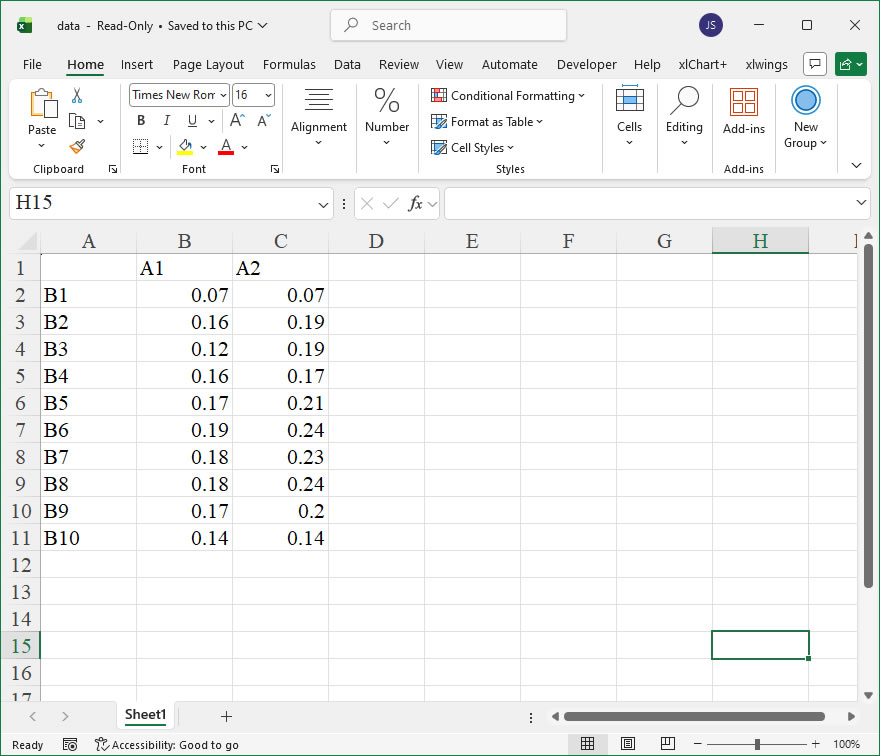
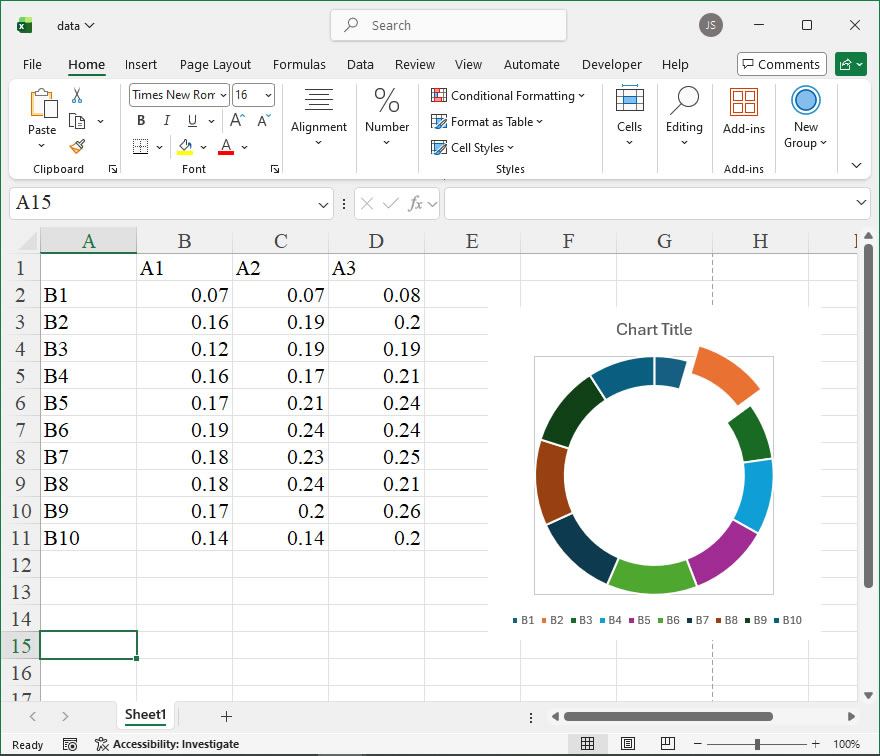
sht.api.Range('A2:B11').Select()  #
shp=sht.api.Shapes.AddChart2(-1,xw.constants.ChartType.xlDoughnut,20,20,250,250,True)
cht=shp.Chart  #
cht.SeriesCollection(1).Points(2).Explosion=16

set_style(cht)

cht.Export(root+'/cht.jpg')
cht.Export(root+'/cht.svg')
cht.ExportAsFixedFormat(0,root+'/cht.pdf')

#wb.save()
#app.kill()

How to use Application.AutomationSecurity in the xlwings API way

The AutomationSecurity property of the Application object in Excel is a crucial setting for controlling macro security when automating Excel through external applications like Python using the xlwings library. It determines the security level that Excel uses when opening files programmatically, which can affect whether macros are enabled or disabled automatically. This property is particularly important in scenarios where automation scripts need to ensure consistent security behavior, especially in environments with varying macro settings. By setting AutomationSecurity, developers can programmatically override the default security settings of Excel, providing more control over macro execution during automated processes. This helps in maintaining security protocols while allowing necessary macros to run in controlled automation tasks.

In xlwings, the AutomationSecurity property is accessed through the app object, which represents the Excel application. The syntax for setting or getting this property is straightforward, as it corresponds directly to the Excel Object Model. The property accepts integer values that correspond to specific security levels defined by Excel. The primary values are:

  • 1 (msoAutomationSecurityLow): This setting enables all macros to run without prompting. It is useful in trusted environments but poses security risks if used with untrusted files.
  • 2 (msoAutomationSecurityByUI): Excel uses the macro security level set in the user interface (via Trust Center settings). This is the default behavior when automation is initiated.
  • 3 (msoAutomationSecurityForceDisable): This setting disables all macros automatically, regardless of the file’s trust settings. It is the most secure option, preventing any macro execution.

To use this property in xlwings, you first need to instantiate an Excel application object. The property can be set before opening a workbook to influence how Excel handles macros in that file. For example, if you want to ensure macros are disabled during an automated data processing task, you can set AutomationSecurity to 3. Conversely, if you trust the source and need macros to run, set it to 1. It’s essential to note that changing this property affects all subsequent workbooks opened in that instance of Excel until it is changed again or the application is closed.

Here is a code example demonstrating the use of AutomationSecurity in xlwings:

import xlwings as xw

# Start a new Excel application instance
app = xw.App(visible=False) # Run Excel in the background

# Get the current AutomationSecurity setting
current_security = app.api.AutomationSecurity
print(f"Current AutomationSecurity setting: {current_security}")

# Set AutomationSecurity to disable all macros (msoAutomationSecurityForceDisable)
app.api.AutomationSecurity = 3
print("AutomationSecurity set to disable all macros.")

# Open a workbook that contains macros
wb = app.books.open('example_with_macros.xlsx')

# Perform some operations, such as reading data
data = wb.sheets['Sheet1'].range('A1').value
print(f"Data from A1: {data}")

# Set AutomationSecurity back to use UI settings (msoAutomationSecurityByUI)
app.api.AutomationSecurity = 2
print("AutomationSecurity reset to UI default.")

# Close the workbook without saving
wb.close()

# Quit the Excel application
app.quit()

How To Create Doughnut Chart Using xlwings?

Example

Code

import xlwings as xw
import os

def set_style(cht):
    cht.ChartArea.Format.Line.Visible=False
    cht.PlotArea.Format.Fill.Visible = False
    cht.PlotArea.Format.Line.Visible = True
    cht.PlotArea.Format.Line.ForeColor.RGB=xw.utils.rgb_to_int((200,200,200))
    #cht.PlotArea.Format.Line.ForeColor.ObjectThemeColor = msoThemeColorText1
    cht.HasTitle = True

root=os.getcwd()
app=xw.App(visible=True,add_book=False)
wb=app.books.open(root+r'/data.xlsx',read_only=False)
sht=wb.sheets('Sheet1')

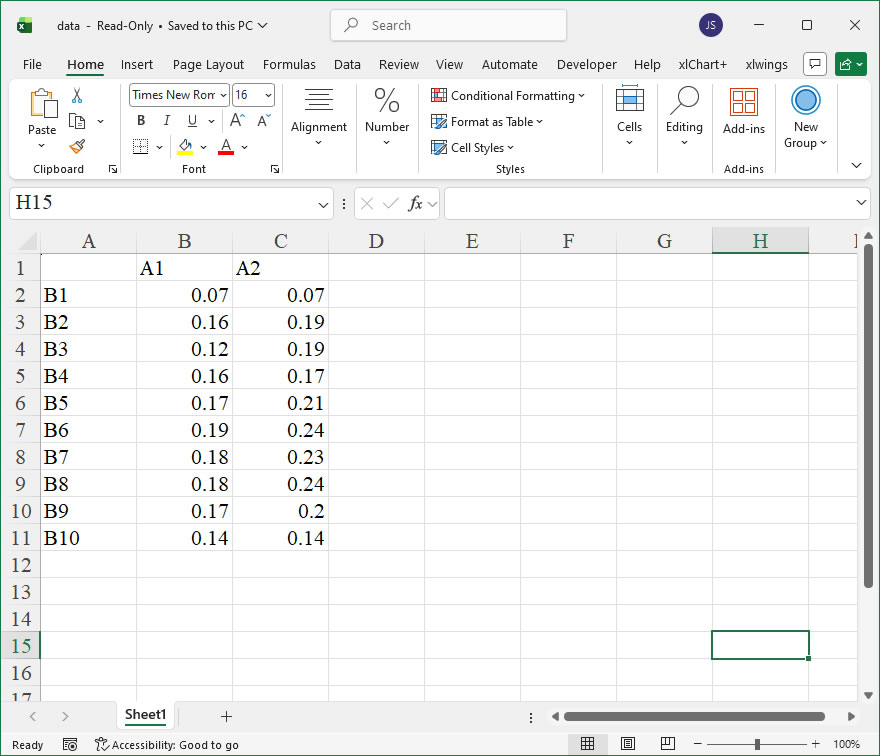
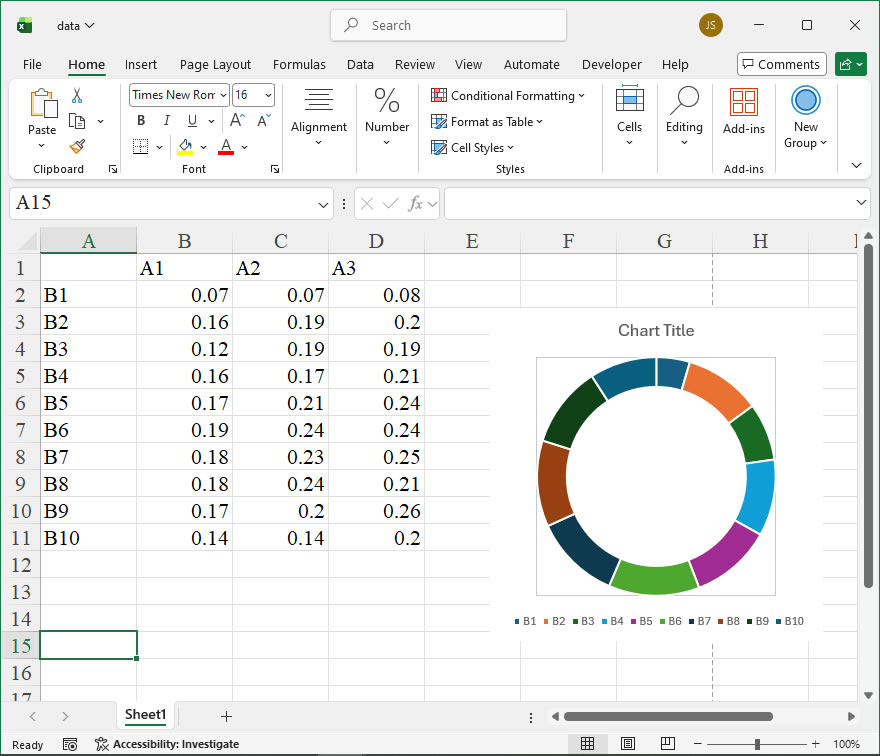
sht.api.Range('A2:B11').Select()  #
shp=sht.api.Shapes.AddChart2(-1,xw.constants.ChartType.xlDoughnut,20,20,250,250,True)
cht=shp.Chart  #

set_style(cht)

cht.Export(root+'/cht.jpg')
cht.Export(root+'/cht.svg')
cht.ExportAsFixedFormat(0,root+'/cht.pdf')

#wb.save()
#app.kill()

How to use Application.AutoFormatAsYouTypeReplaceHyperlinks in the xlwings API way

The AutoFormatAsYouTypeReplaceHyperlinks member of the Application object in Excel is a property that controls whether Excel automatically formats text that resembles a hyperlink address into a clickable hyperlink as you type. This is part of the “AutoFormat as you type” feature, which can help in quickly creating interactive documents by converting typed URLs or network paths into functional links without manual formatting. In xlwings, this property is accessible via the Application object’s API, allowing you to programmatically check or set this automation setting, which can be particularly useful in scripts that prepare or clean Excel workbooks for specific user interactions.

Syntax in xlwings:
In xlwings, you interact with this property through the app object, which represents the Excel Application. The property is exposed as a boolean attribute. The syntax is straightforward:

app.api.AutoFormatAsYouTypeReplaceHyperlinks

This property can be both read and written. When reading, it returns True if the feature is enabled, and False if disabled. When writing, you can set it to True to enable automatic hyperlink formatting, or False to disable it. There are no additional parameters or arguments for this property, as it is a simple toggle.

Example Usage with xlwings:
Below is a practical example demonstrating how to use the AutoFormatAsYouTypeReplaceHyperlinks property in a Python script with xlwings. This example checks the current setting, toggles it based on a condition, and then types some text to observe the effect (if Excel is visible). Note that changes to this setting may affect the user’s Excel session, so it’s often used in controlled environments or reset afterward.

import xlwings as xw

# Start or connect to an Excel application
app = xw.App(visible=True) # Set visible=True to see the typing effect
wb = app.books.add()

# Access the AutoFormatAsYouTypeReplaceHyperlinks property
current_setting = app.api.AutoFormatAsYouTypeReplaceHyperlinks
print(f"Current AutoFormatAsYouTypeReplaceHyperlinks setting: {current_setting}")

# Toggle the setting: enable if disabled, or disable if enabled
new_setting = not current_setting
app.api.AutoFormatAsYouTypeReplaceHyperlinks = new_setting
print(f"Setting changed to: {new_setting}")

# To see the effect, type a URL in a cell (requires Excel to be visible and active)
if app.visible:
    sheet = wb.sheets[0]
    sheet.range('A1').value = "Visit https://www.example.com for more info."
    # If enabled, Excel will format the URL as a hyperlink automatically as you type.
    # Note: In xlwings, setting cell value programmatically may not trigger the "as you type" feature,
    # as it simulates direct value insertion rather than keystroke-by-keystroke typing.
    # The feature primarily works during manual typing in the Excel interface.

    # Restore the original setting (optional, for user convenience)
    app.api.AutoFormatAsYouTypeReplaceHyperlinks = current_setting

# Save and close
wb.save('hyperlink_example.xlsx')
wb.close()
app.quit()

Important Notes:

  • The AutoFormatAsYouTypeReplaceHyperlinks property affects the entire Excel application session, not just a specific workbook. Changing it will influence all open workbooks and future typing actions.
  • In xlwings, when you set a cell’s value using .value, Excel may not apply the “as you type” formatting because it is not simulating real-time keystrokes. The feature is designed for manual entry in the Excel GUI. Therefore, toggling this property via xlwings is more about configuring the environment for user interaction rather than for programmatic data insertion.
  • This property is part of Excel’s application-level options, so it’s persistent across sessions if saved in the user’s settings, but xlwings changes are temporary for the current session unless explicitly saved via Excel’s options dialog.
How to use Application.AutoCorrect in the xlwings API way

The AutoCorrect feature in Excel is a powerful tool for automatically correcting common typing errors, capitalizing days of the year, and expanding text abbreviations. Through xlwings, you can programmatically access and control these settings via the Application object’s AutoCorrect property. This allows for automation of tasks such as disabling auto-capitalization of days, adding custom replacement entries, or checking if a specific text string is in the AutoCorrect list.

Functionality
The AutoCorrect object provides control over Excel’s AutoCorrect options. Key capabilities include:

  • Managing automatic capitalization of days of the week.
  • Controlling the first letter capitalization in sentences.
  • Adding, removing, or checking text replacements (e.g., replacing “(c)” with “©”).
  • Enabling or disabling various auto-formatting features.

Syntax and Parameters
In xlwings, you access it through the app object (an instance of xw.App). The basic syntax is:

app.api.AutoCorrect.MemberName

Where MemberName is a property or method of the AutoCorrect object. Common members include:

MemberTypeDescriptionParameters/Values
CapitalizeNamesOfDaysPropertyGets or sets whether days are auto-capitalized.Boolean (True/False)
TwoInitialCapitalsPropertyControls auto-correction of two initial capitals.Boolean
AddReplacement(What, Replacement)MethodAdds a custom text replacement.What (String): Text to replace. Replacement (String): New text.
DeleteReplacement(What)MethodRemoves a custom replacement.What (String): Text entry to delete.
ReplacementList(Index)PropertyReturns a specific replacement pair.Index (Integer): Position in the list (1-based).

Code Examples
Here are practical examples using xlwings:

  1. Disable auto-capitalization of days:
import xlwings as xw
app = xw.App(visible=False)
app.api.AutoCorrect.CapitalizeNamesOfDays = False
app.quit()
  1. Add a custom text replacement:
import xlwings as xw
app = xw.App(visible=False)
# Replace "xlw" with "xlwings"
app.api.AutoCorrect.AddReplacement("xlw", "xlwings")
app.quit()
  1. Check and delete a replacement:
import xlwings as xw
app = xw.App(visible=False)
# Delete if "xlw" exists in the list
try:
    app.api.AutoCorrect.DeleteReplacement("xlw")
    print("Replacement deleted.")
except Exception as e:
    print("Entry not found:", e)
app.quit()
  1. Iterate through replacement list (first 5 entries):
import xlwings as xw
app = xw.App(visible=False)
ac = app.api.AutoCorrect
for i in range(1, 6):
try:
    item = ac.ReplacementList(i)
    print(f"Index {i}: {item}")
except:
    break
app.quit()

How To Create 3D Pie Chart Using xlwings? 2

Example

Code

import xlwings as xw
import os

def set_style(cht):
    cht.ChartArea.Format.Line.Visible=False
    cht.PlotArea.Format.Fill.Visible = False
    cht.PlotArea.Format.Line.Visible = True
    cht.PlotArea.Format.Line.ForeColor.RGB=xw.utils.rgb_to_int((200,200,200))
    #cht.PlotArea.Format.Line.ForeColor.ObjectThemeColor = msoThemeColorText1
    cht.HasTitle = True

root=os.getcwd()
app=xw.App(visible=True,add_book=False)
wb=app.books.open(root+r'/data.xlsx',read_only=False)
sht=wb.sheets('Sheet1')

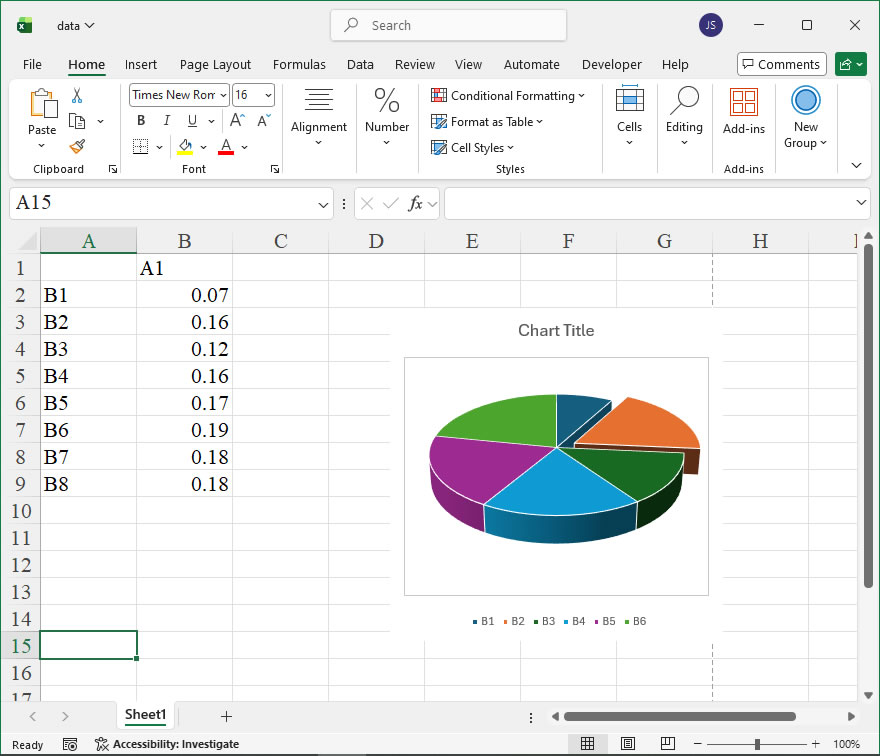
sht.api.Range('A2:B7').Select()  #
shp=sht.api.Shapes.AddChart2(-1,xw.constants.ChartType.xl3DPie,20,20,250,250,True)
cht=shp.Chart  #
cht.SeriesCollection(1).Points(2).Explosion=16

set_style(cht)

cht.Export(root+'/cht.jpg')
cht.Export(root+'/cht.svg')
cht.ExportAsFixedFormat(0,root+'/cht.pdf')

#wb.save()
#app.kill()

How to use Application.Assistance in the xlwings API way

The Application.Assistance member in Excel’s object model provides access to the Help system, allowing developers to display specific Help topics programmatically. In xlwings, this functionality is exposed through the api property, which grants direct access to the underlying Excel VBA object model. This is particularly useful for creating user-friendly applications where context-sensitive help can be triggered based on user actions or inputs.

Functionality:
The primary purpose of Application.Assistance is to show a designated Help topic to the user. It can display built-in Excel Help topics using their unique Help IDs, which are often numeric or string identifiers. This enables developers to guide users directly to relevant documentation without requiring them to manually search through the Help system.

Syntax:
In xlwings, the syntax to call this member is:

app.api.Assistance.ShowHelp(HelpFile, HelpContextID)
  • HelpFile: This is a string parameter that specifies the name of the Help file. For built-in Excel Help, this is typically set to "" (an empty string) or None to use the default Excel Help file. If using a custom Help file, provide its full path or name.
  • HelpContextID: This parameter can be a string or numeric value that identifies the specific Help topic. For Excel’s built-in topics, this ID is often a numeric code corresponding to a particular subject. The exact IDs can be found in Excel’s VBA object model documentation or through developer resources. For example, the Help ID for the “Format Cells” dialog is "xlMainWindow" or a specific numeric ID like 27010 for certain topics.

Example:
Below is an xlwings code example that demonstrates how to use Application.Assistance to display a Help topic. This example assumes Excel is already running and a workbook is open via xlwings.

import xlwings as xw

# Connect to the active Excel instance
app = xw.apps.active

# Display a built-in Excel Help topic, e.g., for general assistance
# Using an empty string for HelpFile defaults to Excel's Help
# The HelpContextID "xlMainWindow" opens the main Help window
app.api.Assistance.ShowHelp(HelpFile="", HelpContextID="xlMainWindow")

# Alternatively, to show a specific topic by numeric ID (example ID)
# This might open a topic like "About Excel" (ID varies by version)
app.api.Assistance.ShowHelp(HelpFile="", HelpContextID=27010)

# For a custom Help file (if available), specify the file path
# app.api.Assistance.ShowHelp(HelpFile="C:\\Help\\CustomHelp.chm", HelpContextID=100)

Notes:

  • The effectiveness of this method depends on the availability and correctness of Help IDs. Some IDs may change between Excel versions, so testing across versions is recommended.
  • If the HelpFile parameter is left empty and a valid HelpContextID is provided, Excel will attempt to open the corresponding topic in its default Help system.
  • In cases where the Help topic cannot be found, Excel may display a generic Help window or an error, depending on the version.