Method
Creating a chart using the `Shapes` object is essentially achieved through the API method in `xlwings`. In this approach, the `AddChart2` method of the `Shapes` object is used to create the chart. The syntax is as follows:
sht.api.Shapes.AddChart2(Style,XlChartType,Left,Top,Width,Height,NewLayout)
Here, `sht` represents the specified worksheet, and there are seven parameters, all of which are optional:
– `Style` – The chart style. If the value is `-1`, it represents the default style for each chart type.
– `XlChartType` – The chart type, represented by the `XlChartType` enumeration. A partial list of values is provided in Table 6-1.
– `Left` – The left position of the chart. If omitted, the chart will be horizontally centered.
– `Top` – The top position of the chart. If omitted, the chart will be vertically centered.
– `Width` – The width of the chart. If omitted, the default value is 354.
– `Height` – The height of the chart. If omitted, the default value is 210.
– `NewLayout` – Indicates the chart layout. If `True`, only composite charts will display legends.
This method returns a `Shape` object representing the chart.
sht.api.Range(‘A1’).CurrentRegion.Select()
sht.api.Shapes.AddChart2(-1,xw.constants.ChartType.xlColumnClustered,30,150,300,200,True)
Sample Code
#Create chart - Shapes object

import xlwings as xw
import os

root = os.getcwd()
app = xw.App(visible=True, add_book=False)
wb=app.books.open('GDP.xlsx',read_only=False)
sht=wb.sheets(1)

sht.api.Range('A1').CurrentRegion.Select()
sht.api.Shapes.AddChart2(-1,xw.constants.ChartType.xlColumnClustered,30,150,300,200,True)

#wb.save()
#wb.close()
#app.kill()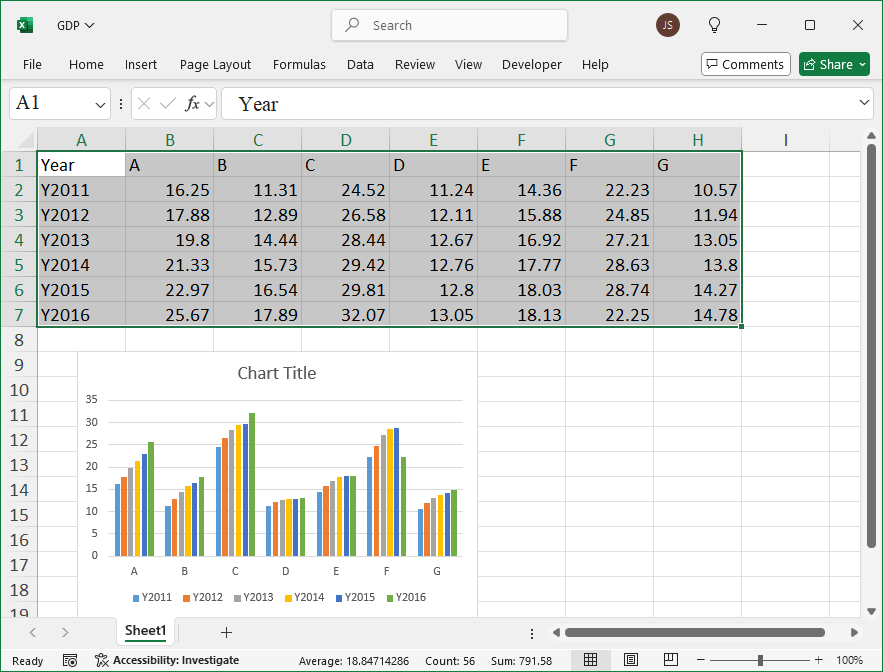
Leave a Reply